
Whether you are looking for a cheap Android tablet for drawing, the best Windows tablet computer for graphic design, or you wish to know the best iPad Pro models for drawing, here you will find the best tablets for your artistic needs
Tablets for drawing, whether they are Windows, iOS iPads or Android tablets, don't need to be connected to a computer in order to work, as they actually are a full computer device in and of themselves. They can run creative programs such as Photoshop, ProCreate, Autodesk Sketchbook, etc.
If you are in doubt, take this simple test and you will immediately know what tablet is right for you.
If you want personalized assistance, we can help you decide which model to get or answer any questions, just leave a comment in the comments section and we will get back to you as soon as possible.
Here we have compiled the top 10 list with the best tablet computers for artists, including digital drawing, graphic design or 3D modeling/sculpting.

Affiliate Disclosure: This post may contain affiliate links. That means if you buy something we get a small commission at no extra cost to you (learn more). This allows us to keep this website alive.
Quick navigation:
- Take This Test: Find Your Ideal Tablet
- Tablet computers for drawing Vs Graphic tablets
- What is the best type of tablet computers for artists? Windows, Apple or Android?
- Best Windows Tablet Computers for Drawing, Graphic Design and 3D
- The Best iPad Pro models for drawing and design
- Best Android Tablets for Drawing
- Still in doubt? Ask me anything
Tablets for drawing Vs Graphic tablets
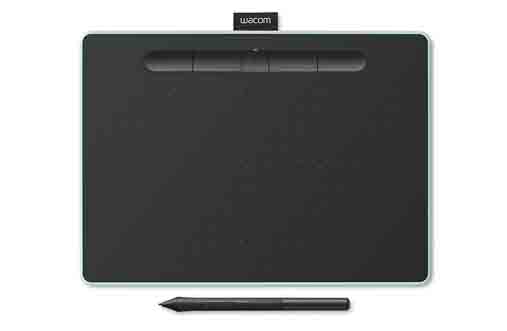
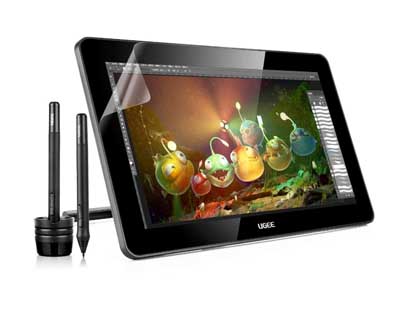
Note: A tablet for drawing is not the same thing as a drawing tablet or a graphic tablet.
A tablet computer or tablet has its own operating system (Windows, Android or iOS), and hence does not need to be connected to a computer in order to function. A graphic tablet however needs to be connected to a computer in order to work.
If what you are looking for is a graphic tablet, then please head over to the articles listed below. If what you are looking for is an android tablet or a tablet computer, then you are at the right place, keep on reading 🙂 ...
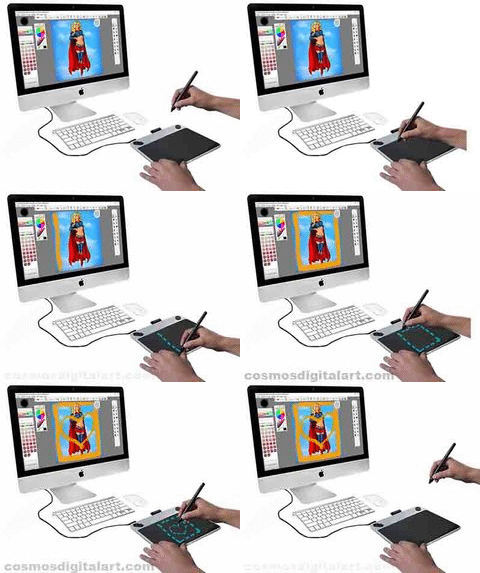
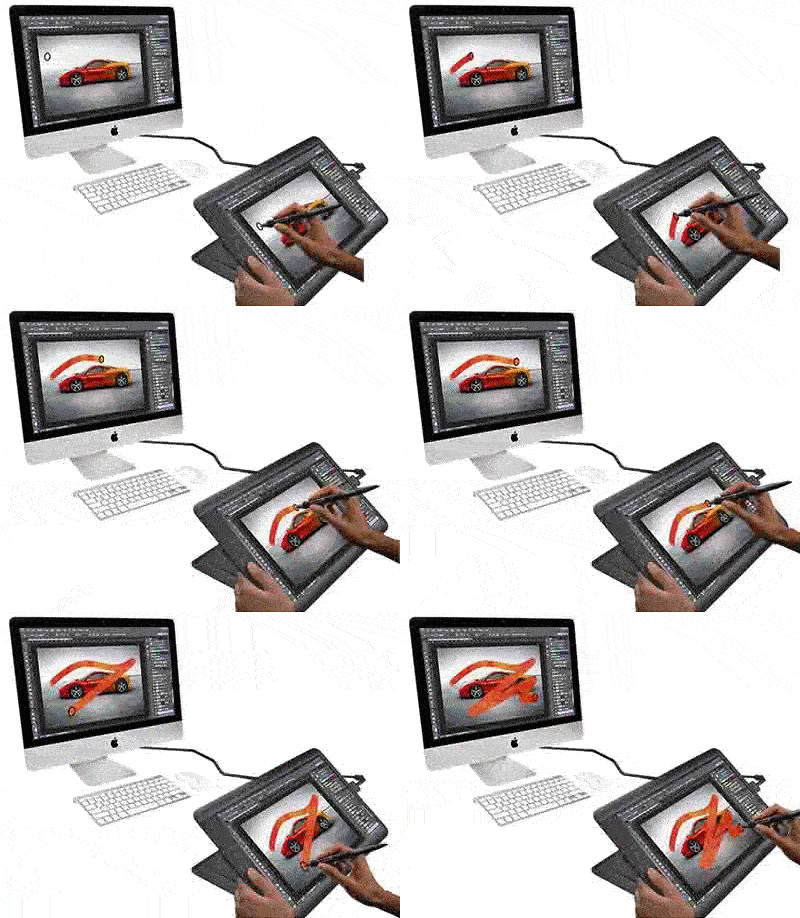
I want a graphic tablet with screen (Pen display tablet)
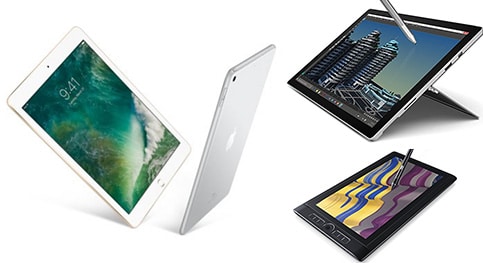
Tablets for drawing (Windows, iOS or Android)
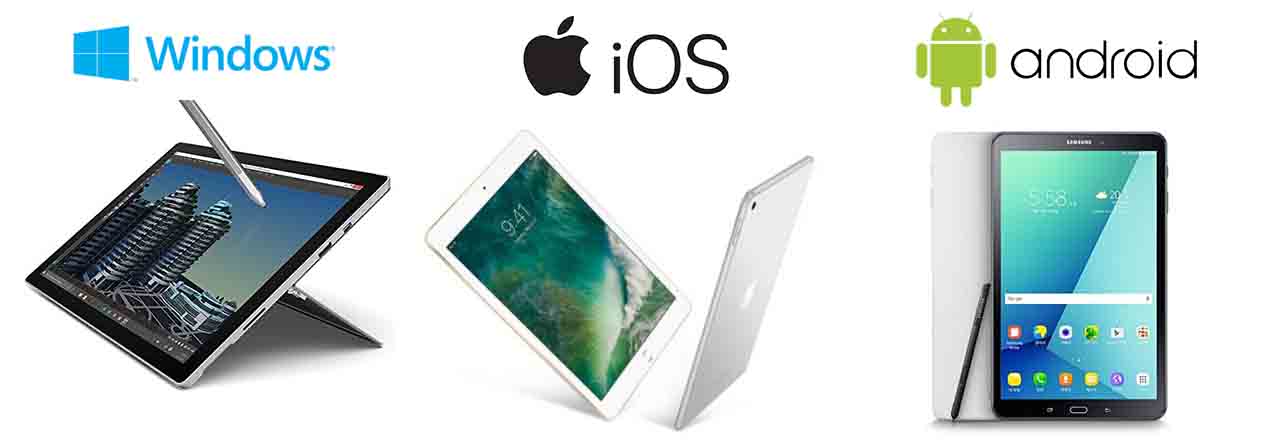
What is the best type of tablet for drawing, graphic design and 3D? Windows, Apple or Android?
When it comes to a tablet computer or a tablet for digital drawing, graphic design and 3D, the most important thing is that the tablet can run the creative software in a fast and smooth way.
Since most of the software for digital drawing and design is optimized for Windows and iOS (such as Photoshop, ProCreate, Illustrator, etc.) then clearly the best tablet computers for graphic design and drawing professionally are the ones with Windows and iOS operating system. This is also the case for 3D modeling/sculpting software.
But in most cases, if you are not a professional graphic designer, an Android tablet can be a perfect choice for you.
Quick Compare:
- ANDROID
- IPAD
- WINDOWS
► Best value Android tablet recommended for drawing

Excellent tablet at a very affordable price (Best Seller)
► Absolute Best: Galaxy Tab S6 with S Pen
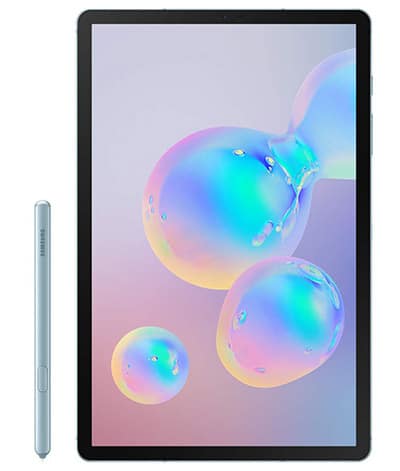
Best Android tablet for drawing
Samsung Galaxy Tab S6 with S Pen is on Amazon at a good price
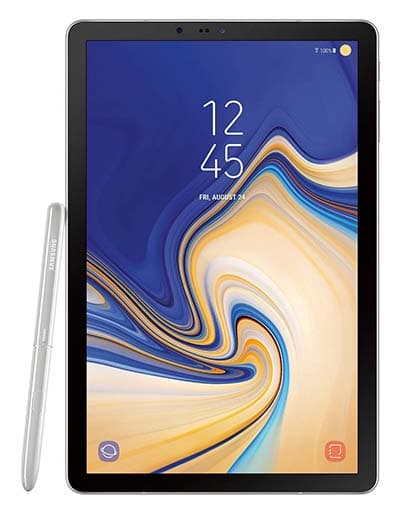
► Next Best: Galaxy Tab S4 with S Pen
► Better than the Galaxy Tab A: Galaxy Tab S3 with S Pen

Yes there are also Android tablets with a touchscreen and a digital stylus which are pretty good for drawing, and there are also plenty of digital drawing and sketching apps for Android, although if you are a professional, most professional drawing and design software is found on Windows, macOS and iOS.
If you are a professional illustrator, graphic designer or 3D modeller and you are going to use your tablet computer or tablet as your main work computer, then you definitely need a Windows or Apple tablet.
Having said that, in most cases, if you are not going to do professional work and you are just looking for a tablet for drawing and sketching casually, or to share your creations on social networks, then an Android tablet will be perfectly fine for you.
Best Windows Tablets for Drawing, Graphic Design and 3D
The following are the most optimized tablets and tablet computers for drawing, graphic design and 3D. These are devices optimized for creative software that can also run all sorts of general use software, so depending on the model they can even replace your main computer.

Best Android Tablets for Drawing
If you are thinking of buying an Android tablet for drawing, digital painting or sketching, we recommend that you first have a look at the mini-guide below which will teach you all the basics about how to get the most out of Android tablets for drawing.
If you are already familiar with the differences between an Android tablet and a Windows or iOS tablet, you can jump ahead to the recommended Android tablets for drawing that we have reviewed for you further down.
Android Tablets Vs Windows tablets and iPads, which is better for drawing?
Differences between an Android tablet, a Windows tablet and an iPad for drawing and graphic design: [click to show]
Android apps for drawing and painting on an Android tablet:
List of Android apps for drawing and painting: [click to show]
How to use an Android tablet as a graphic tablet, connected to a computer:
Here we explain how to do this: [click to show]
Now, on to the selected models. Here is the selection of the best Android tablets for drawing and digital painting.
The Galaxy Tab A is one of the best selling tablets on Amazon and other retailers. It came out to the market some time ago, so we are not talking about the latest Samsung tablet here, but for this reason the price has dropped greatly, making it incredibly cheap and good value for money.
Because of its high quality-price ratio, the 10.1 inch Samsung Galaxy Tab A with S Pen is a great (as well as cheap) option as an Android tablet for drawing and digital painting.
► Best value Android tablet recommended for drawing
Excellent tablet at a very affordable price
Samsung Galaxy Tab A 10.1'' with S Pen - specifications:
The S-Pen on the Galaxy Tab A (2048 pressure sensitivity levels):
The S-Pen on the 10.1 inch Samsung Galaxy Tab A provides good sensations when drawing, pressure sensitivity responds well and it has very little lag (although the delay can vary depending on the drawing app used).
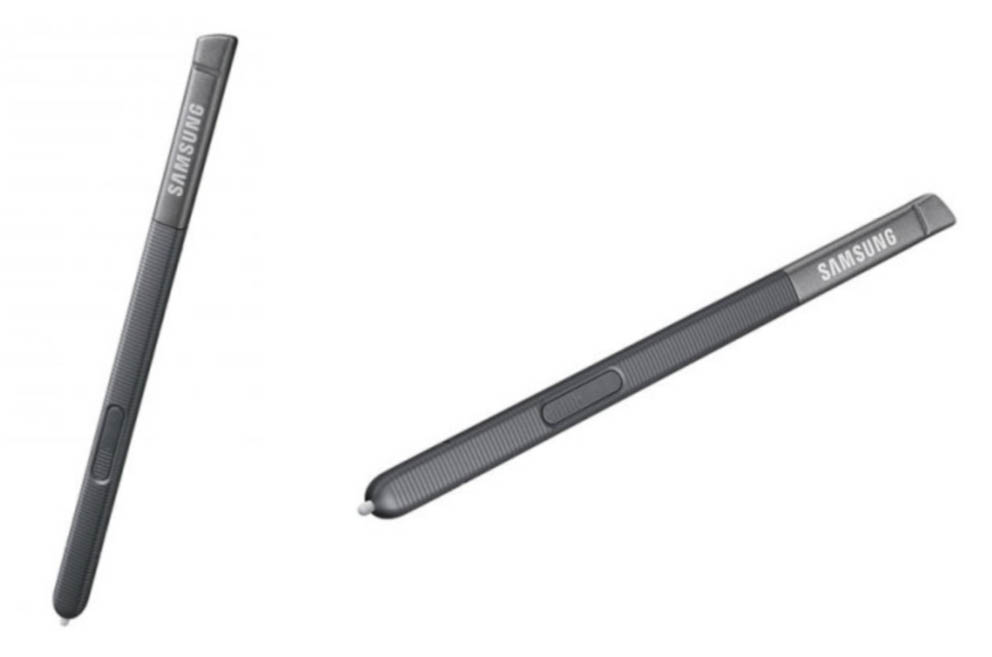
It is worth noting that the S-Pen included with the 10.1 inch Galaxy Tab A has 2048 pressure sensitivity levels, not 4096 as has been mentioned occasionally. The one with 4096 pressure levels is the one on the Galaxy Tab S3, which came out later.
However 2048 pressure sensitivity levels can be more than enough on an Android tablet for drawing, as what matters is not just the number of levels but how the digital stylus performs overall when drawing over the tablet screen. For the Galaxy Tab A, the S-Pen works pretty well when it comes to sketching, doodling and drawing on Android apps.

The Galaxy Tab A 10.1 inch screen size, is it good for drawing?
This Android tablet is available in various sizes, but the size we are recommending for drawing is the 10.1 inch model. There are also 8 inch models, but if drawing is going to be your main activity with this tablet, then 10.1 inches is a better size.
It is compact, thin and portable, and it only weighs 525 grams (just over a pound).
This tablet is perfect for carrying around, pull it out of your bag and start drawing and sketching at the coffee shop, the park or at the hotel swimming pool (outside, not inside 🙂 ).

10.1 inches is a compact, medium size screen, quite appropriate for sketching, roughly similar to the size of an A5 sketchbook.
The screen is not as large as that of a Surface Pro 4 (which has a 12.3 inch screen) or one of the bigger iPad Pro models (12.9 inches), but it is quite close to the 10.5 inch iPad Pro.
Generally speaking, this is a good portable size to carry on a small bag and be able to sketch on the go.
How good is the 10.1 inch Galaxy Tab A with S-Pen for drawing and design:
For its price, it is a great option as an Android tablet for drawing. If you are looking for a cheap Android tablet to draw anywhere, carry it to the cafeteria, to the beach or to the swimming pool, this can be your tablet.
Now, for graphic design, we wouldn't recommend this or any other Android tablet, because of the limitations that Android has when it comes to working with vector graphics and because it's not the ideal platform for professional work.
For drawing and painting, yes it's a pretty good tablet with great quality-price ratio. You can see the price of the Samsung Galaxy Tab A with S-Pen here (best seller).
If you want a more powerful tablet than the Galaxy Tab A, then have a look at the improved model, the Galaxy Tab S3 with S Pen.
To give you an idea of its performance, the Galaxy Tab S3 is similar to an iPad Pro, but on Android. In fact, Samsung created the Galaxy Tab S3 to compete against Apple's iPad Pro.
► More powerful than the Galaxy Tab A: Galaxy Tab S3
Galaxy Tab S3 with S Pen - specifications:
The S-Pen on the Galaxy Tab S3 (4096 pressure sensitivity levels):
The S-Pen on the Galaxy Tab S3 is a superior version to that of the Galaxy Tab A. It has 4096 pressure sensitivity levels, versus the 2048 of the Galaxy Tab A.

A key characteristic of the S-Pen on the Galaxy Tab S3 is the tip diameter, which has been improved (reduced) to 0.7mm, as a smaller pen tip allows you to draw and write on the screen with more accuracy.

All the pressure sensitivity comes from the S Pen, not from the tablet screen. This means that you can use a screen protector as thick as you want and it won't affect pressure sensitivity.
The S Pen comes with 5 replaceable nibs, some hard and some soft, so you can use whichever one you want based on the feeling you prefer.
Galaxy Tab S3 improvements with respect to the 10.1 inch Galaxy Tab A:
The Galaxy Tab S3 was launched after the Galaxy Tab A, so it has improved hardware specifications, but since it's a newer model this also means it's more expensive.

Galaxy Tab S3 with S Pen, final score as Android tablet for drawing and design:
Summing up, the Galaxy Tab S3 with the new S Pen works wonderfully for drawing. It has no noticeable delay when drawing on screen, it rejects well the palm pulsations, and pressur sensitivity works pretty smoothly.
The Galaxy Tab S3 is similar to the iPad Pro in many aspects, being much cheaper than an iPad Pro, although it does have some lower specs. Some people would call it "the iPad Pro of Android".
Again, with respect to using this Android tablet for graphic design, the conclusion is the same as with the Galaxy Tab A: generally speaking, Android tablets are not good candidates for graphic design tasks, although they are slowly getting traction in this space thanks to the release of new vector image editing apps for Android.
So, all in all, great Android tablet for drawing. Not recommended for graphic design though, but great for sketching, drawing, or digital painting. Check the price of the Samsung Galaxy Tab S3 here.
If the Android tablets we have recommended for drawing so far are for some reason not of your liking, here is another great option in the Android tablet space.
This Asus tablet is a great option for drawing and digital sketching. This device is a good middle point between the Galaxy Tab A and the more expensive Galaxy Tab S3, both in price and in specs.
► Intermediate option: cheaper than the Galaxy Tab S3, better specs than the Galaxy Tab A

Why is it a good Android tablet for drawing?
- It has a great screen: (2048 x 1536 pixels, like the Galaxy Tab S3), 9.7 inch, and multi-touch
- 4GB RAM and 64GB storage (more than the Galaxy Tab S3)
- Its price is a good half-way point between the Galaxy Tab S3 and the Galaxy Tab A
Why does it rank low than the Samsung Android tablets recommended for drawing so far?
- Some specs are lower than on the Galaxy Tab S3
- For instance, the operating system is Android 6.0 upgradeable to 7.0, and the processor is a 6-core Mediatek.
- The digital stylus has 1024 pressure sensitivity levels.
In what cases would it be better to buy this Android tablet for drawing?
- If you want a cheap Android tablet for drawing and sketching, the #1 recommendation is to get the Galaxy Tab A 10.1 with S Pen.
- If you want a more powerful Android tablet, but also more expensive, buy the Galaxy Tab S3.
- Best balance: If you want a half-way point in price and performance, consider the Asus ZenPad 3S 10 Z500M.

The following are the best Windows tablets for drawing, graphic design, illustration and 3D modeling.
Microsoft Surface Pro is considered by many the most versatile tablet-computer on the market.
Since it comes with Windows 10 operating system, it can run all the major software for design, animation, 3D modeling and sculpting that you would normally use on a desktop PC, such as Photoshop/Illustrator, ZBrush ,3D Studio Max, Blender, etc.
There are a few versions of this tablet: Microsoft Surface Pro 4, 5 and 6 as the newest ones and the most powerful, so those are the most recommended ones.
Of these, the most powerful one is the Microsoft Surface Pro 6, and the cheapest one but still with pretty high performance is the Microsoft Surface Pro 4.
As a good halfway point you find the Microsoft Surface Pro 2017 (a.k.a. Microsoft Surface Pro 5), which is very powerful and now cheaper, since after the latest model release its price has dropped.
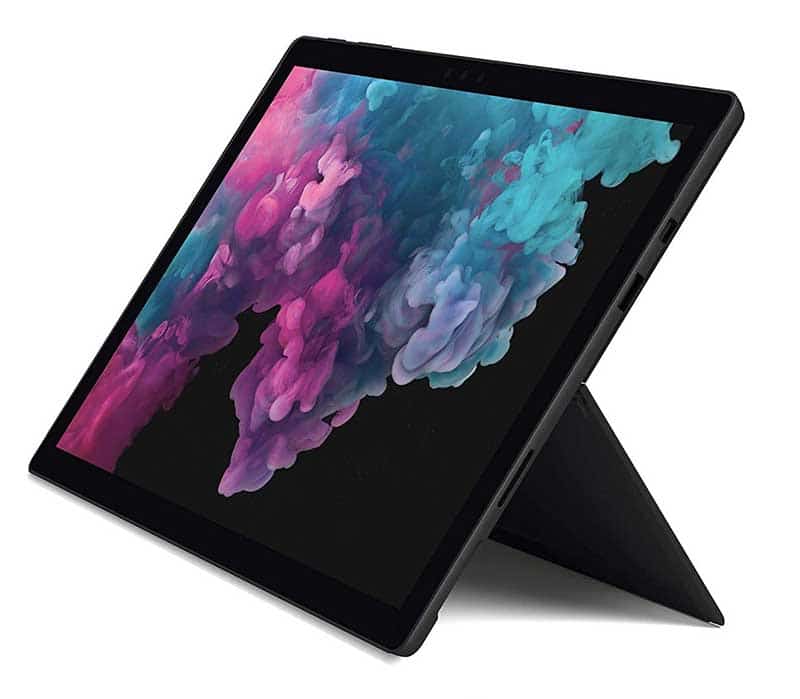
Microsoft Surface Pro 6 is the latest version and the most powerful one. This is the first tablet computer of the range that includes an 8th generation QUAD-CORE processor, with 4 cores and 8 execution threads (a huge performance improvement).



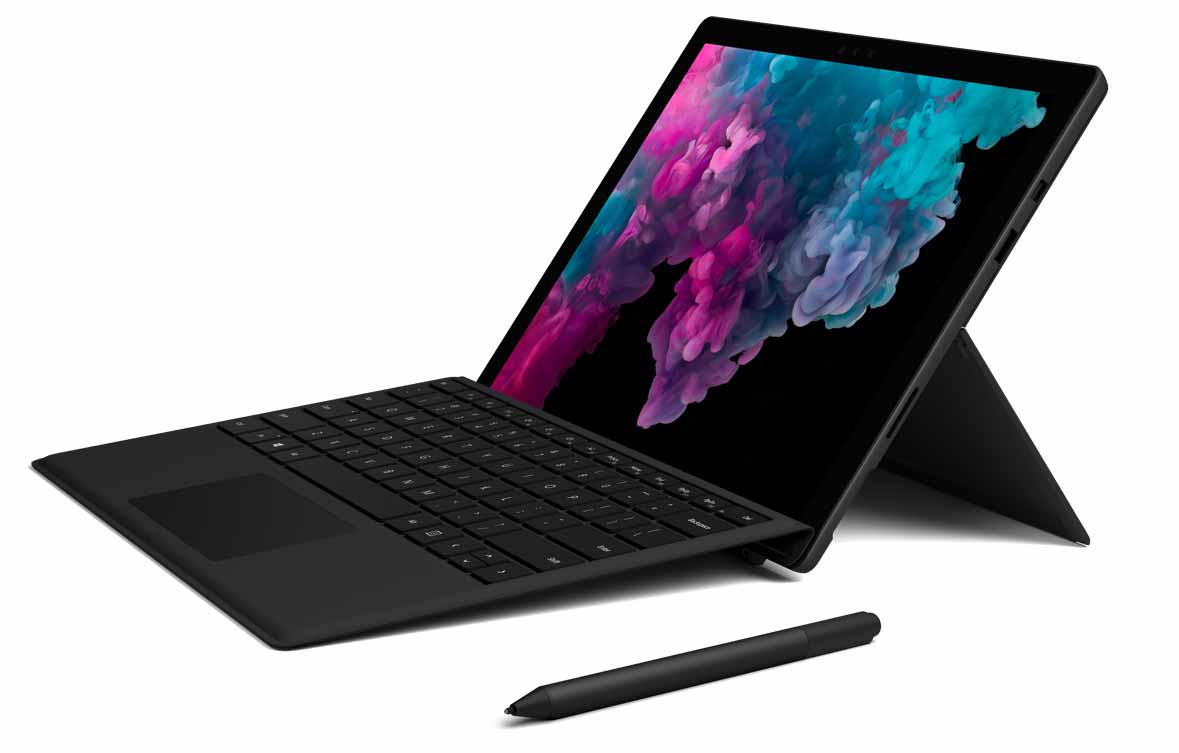
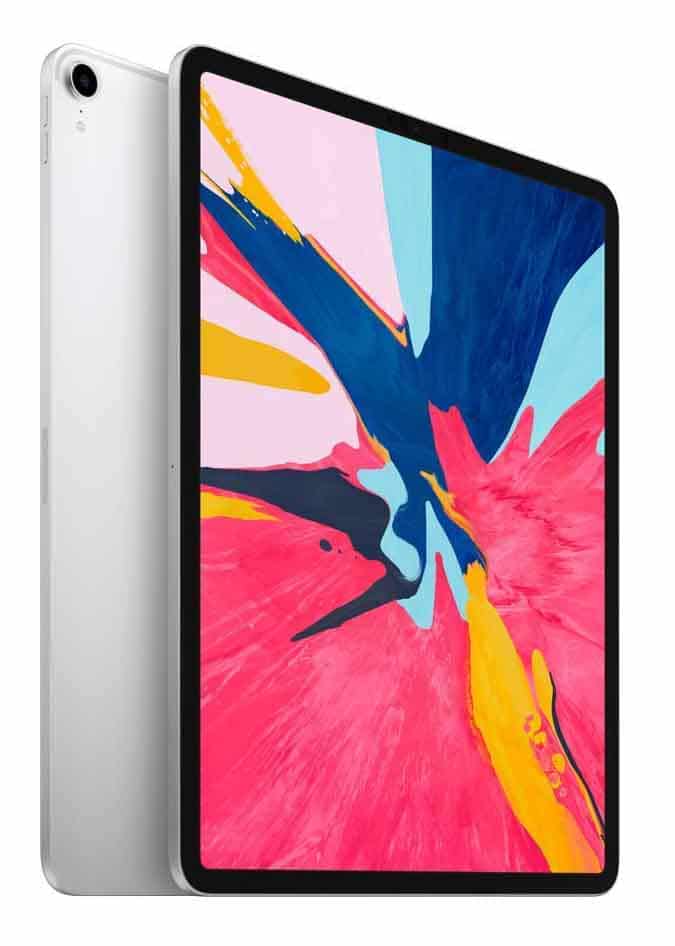
The main competitor of the Microsoft Surface Pro 6 is the 12.9 inch 2018 iPad Pro, both are extremely powerful devices.
Its previous version, the Surface Pro 5 (2017) is also a a extremely powerful tablet, and they both have a bunch of good things in common.
Here you can see a comparison between the Microsoft Surface Pro 6 and the 12.9 inch 2018 iPad Pro:
As you can see, they are quite similar at least on the outside.
Here you can also see the likeness between the Microsoft Surface Pro 6 and its previous version, the 2017 Microsoft Surface Pro 5, and again you can notice they are extremely similar externally:
Further down you can see a comparison of the main features and specifications of the Microsoft Surface Pro 6 versus its previous version, the 2017 Microsoft Surface Pro 5.
- SURFACE PRO 6
- SURFACE PRO 5 (2017)
► Microsoft Surface Pro 6:
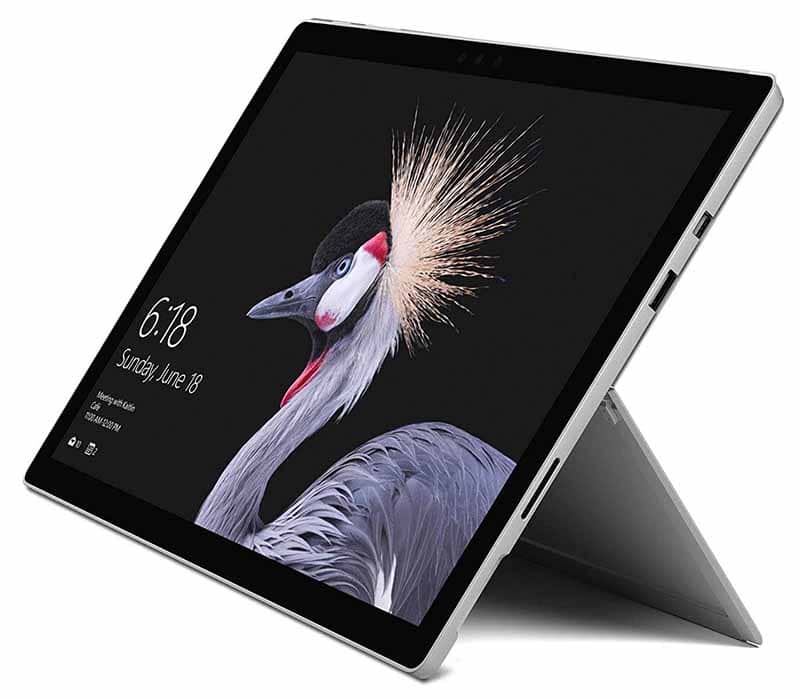
We will soon be publishing a detailed review and comparison of the new Microsoft Surface Pro 6 versus the latest iPad Pro, so stay tuned.
The Surface Pro 4 is a powerful tablet computer with Windows 10 operating system and it takes one of the top places in the list of best tablet computers for drawing, graphic design and anything 3D.
The Microsoft Surface Pro 4 is a complete computer and it is extremely versatile. Unlike the Wacom MobileStudio Pro, the Surface Pro tablet computers are not specifically designed for graphic design, however they provide enough power and flexibility that they can be used for running digital drawing or 3D design programs, and they are a great computer for every other general use task.
The digital stylus of the Surface Pro is called the Surface Pen, it is rechargeable (it uses an AAA battery) and it has 1024 pressure sensitivity levels. This may look like a small number for pressure sensitivity at first glance, however in reality the Surface Pen performs surprisingly well for digital drawing in terms of responsiveness and accuracy. This is because the response of a digital stylus is not only determined by the number of pressure sensitivity levels, but also a myriad of other factors such as how well the software drivers are integrated with the hardware, the response time and report rate, etc.
A big plus of the Surface Pro 4 is its battery life, which can last up to 9 hours of video playback.

Microsoft Surface Pro 4 - specifications
Microsoft Surface Pro 4 key features:
The Surface Pro 4 has "only" 1024 pressure sensitivity levels... bad tablet for drawing?
The fact that the Surface Pen only has 1024 pressure sensitivity levels does not mean that the Surface Pro 4 is a bad tablet for drawing.
It is important to understand that the feeling of responsiveness in a digital stylus is not only determined by the number of pressure sensitivity levels. Pressure sensitivity levels matter, to a certain extent, but they are not the only factor.
There are other factors that may have more of an impact on how the digital stylus feel, such as the technology that it uses (whether it's electromagnetic resonance, passive or active components, etc.), and how well integrated are the software and the hardware. If you want us to write an article about this, please leave it in the comments section.
In reality, when drawing with a tablet or tablet computer, what we are looking for on the digital stylus side is not just a high number of pressure sensitivity levels, what we really want is a smooth user experience. This means that the feeling while drawing on screen must be smooth and responsive, no broken lines, no delays, no driver issues, and so on.
On the whole, the Surface Pen combined with the Surface Pro 4 screen gives pretty good results when it comes to drawing with the likes of Photoshop and other design programs.
Check out this detail: the Surface Pro 4 screen (impressive technology)
The Surface Pro 4 screen has technological advances that are not noticed at first glance, but that really make a difference with respect to other tablet computers.
On the Surface Pro 4 Microsoft has improved the screen with respect to previous models, stacking the layers of pixels, diodes and touch sensors closer together and closer to the glass you draw on. This means that the screen has more precision to the touch, better colour accuracy and better image quality. This is what Microsoft calls Pixelsense technology.
And this is not just marketing nonsense. Screen tests have been carried out by independent companies that have nothing to do with Microsoft, and the Surface Pro 4 screen has reached performance levels unmatched by other tablet computers.
Down here you can see the details that separate the Surface Pro 4 screen from the rest.
The independent company DisplayMate, a company specialized in test and calibration of display monitors, did all sorts of screen quality and colour precision tests on the Surface Pro 4 screen, and these is what they said about it (literal quotes extracted from their report):
You can read the full report about the Surface Pro 4 screen quality here (external link).
Summing up: Is the Microsoft Surface Pro 4 a good Windows tablet for drawing, graphic design and 3D?
All in all, the Microsoft Surface Pro 4 is a perfectly viable option as a tablet for drawing, graphic design, 3D modeling/sculpting and any other digital creation task.
Even though it is not a specialist drawing tablet computer like the Wacom MobileStudio Pro, the Surface Pro 4 is an incredibly well balanced tablet computer. It is versatile and reliable, perfect for drawing and designing in 2D and 3D in the likes of Photoshop, Illustrator or ZBrush.
And, on top of that, it is a great computer for pretty much everything else.
6. Wacom MobileStudio Pro (Windows)
Wacom's MobileStudio Pro are the reference tablet computers for graphic design, illustration, 3D and any kind of visual creativity work. They are designed specifically for drawing and digital illustration, graphic design, 3D modeling/sculpting, animation, video editing and all sorts of 2D and 3D creative software.
The MobileStudio Pro tablets come with Windows 10 pre-installed as operating system, and they feature a powerful Intel processor, enough RAM memory to run the most demanding design programs, an SSD storage drive... and of course they also include Wacom's famous Pro Pen 2 digital pen with 8192 pressure sensitivity levels, tilt sensitivity, multi-touch functionality... In summary, this tablet is a powerful computer optimized for digital drawing, graphic design and 3D.
Wacom MobileStudioPro characteristics
The following are the key technical specs of the Wacom MobileStudioPro, and as you can see they are pretty impressive:
This is not a simple tablet, we are talking about a poweful high performance computer optimized for design and digital creation. It's a complete computer with Intel technology, with enough power to run smoothly any design application such as Photoshop/Illustrator, video editing software like Adobe Premiere, or 3D modeling programs such as 3D Stuio Max or SolidWorks.
MobileStudioPro tablet computers are available in 13 inch and 16 inch screen sizes, with different processor and RAM memory amount depending on the model. Further down you can see a comparison table where you have a breakdown of all the processor-memory options available on the range.
The screen resolution is simply impressive, well above Full HD, with 2560x1440 pixels (WQHD) on 13 inch models and 3840x2160 pixels (4K) on 16 inch models, with a colour accuracy of 96% of Adobe RGB, a high professional level standard for color quality.

Wacom MobileStudioPro (13 inch) - specifications

Wacom MobileStudioPro (16 inch) - specifications
Wacom MobileStudio Pro models, according to Wacom's official website:
Screen size | Processor | SSD storage (GB) | RAM (GB) | Graphics | 3D camera | Pressure levels | Tilt sensitivity | Multi-touch | Price |
|---|---|---|---|---|---|---|---|---|---|
i5 | 64 | 4 | Intel Iris 550 | No | 8192 | Yes | Yes | ||
i5 | 128 | 8 | Intel Iris 550 | No | 8192 | Yes | Yes | ||
i7 | 256 | 8 | Intel Iris 550 | No | 8192 | Yes | Yes | ||
i7 | 512 | 16 | Intel Iris 550 | Yes | 8192 | Yes | Yes | ||
16'' | i5 | 256 | 8 | NVIDIA Quadro M600M | No | 8192 | Yes | Yes | |
16'' | i7 | 512 | 16 | NVIDIA Quadro M1000M | Yes | 8192 | Yes | Yes |
As you can see, these tablet computers are completely optimized for graphic design, drawing, illustration, 3D modeling and any type of digital creation.
The price of the Wacom MobileStudio Pro is proportional to its specifications. These are not cheap tablets, but they are specifically designed for 2D and 3D digital creation. These are high end tablet computers with features that no other tablet computer for drawing and design has, such as:
Do you know of any other tablet computer for graphic design with an integrated 3D scanning camera?
The highest models of the MobileStudioPro range feature an integrated Intel RealSense R200 3D scanning camera and the 3D scanning software Artec Studio 12 Ultimate.
Do you know any other tablet computer for design and digital creation that has an integrated 3D scanning camera? If you know any other tablet that does, please leave it in the comments.
So, is the Wacom MobileStudio Pro a "tablet computer" or a "graphics tablet"?
It's a tablet, since it has its own operating system, but you can also use it as a graphic tablet, as if it was a Cintiq, connecting it to another computer.
In the image below you will see it clearly.
The default mode is the tablet computer mode, for drawing and designing independently without having to connect the MobileStudio Pro to another computer. But if you want, you can use it in graphic tablet mode, connecting it to another computer, using the computer's monitor as the main screen and the MobileStudio Pro as the digitizer touch screen.

Wacom MobileStudioPro in "tablet computer mode".

Wacom MobileStudioPro in "graphic tablet mode".
The MobileStudio Pro is designed so that it can also be used as a pen display tablet (similar to a Cintiq), if you choose to do so. That means that you can connect it to another computer and it will function as a pen display graphic tablet or drawing screen.
Other tablet computers don't have this functionality out of the box. You may be able to do something similar to this with other tablets, using certain software programs, but the results may not be optimal. When using third party programs as intermediaries between the tablet and the computer, there will always be an added delay and the response will likely be less smooth.
With the MobileStudio Pro, you don't have this problem as it is designed to work as a tablet computer or as a pen display tablet, by design.
Summing up, Wacom MobileStudio Pro = best tablet computer for drawing, graphic design and 3D?
Looking at the technical specifications of the Wacom MobileStudio Pro, it is rather clear that they are the most optimized tablets for drawing, graphic design and 3D. They are specifically designed for it.
These are unique features of the Wacom Mobilestudio Pro that make them the best tablets for drawing, graphic design and 3D:
Their price is according to their specifications, as they are the most optimized ones for digital creation. When buying a tablet for drawing, graphic design or 3D, is it worth investing in buying the best device out there? It depends on how you are going to use the device, how professional and how much performance you require, but the MobileStudio Pro has the performance.
In any case, the reality is that currently there are no other tablets that can match this set of specifications.
You can check the price of the Wacom MobileStudio Pro here.
Not what you are looking for?
This post is about tablets for drawing and designing in 2D and 3D,
if what you want is a "graphic tablet", check out these articles:
Graphic tablets with screen (Drawing monitors)
Not all iPads are the same, some are better for drawing and design, some are better for other tasks. In this section we explain what are the most interesting iPad Pro models worth buying for drawing and design.
Overall the newest Apple iPad Pro, 3rd gen, is the best one due to its high performance and the new all-screen design.
The new iPad Pro comes in two sizes, 11 inch and 12.9 inch, and it is absolutely spectacular.
- 11'' IPAD PRO (NEW)
- 12.9'' IPAD PRO (NEW)
► iPad Pro 2018 (11 inch):
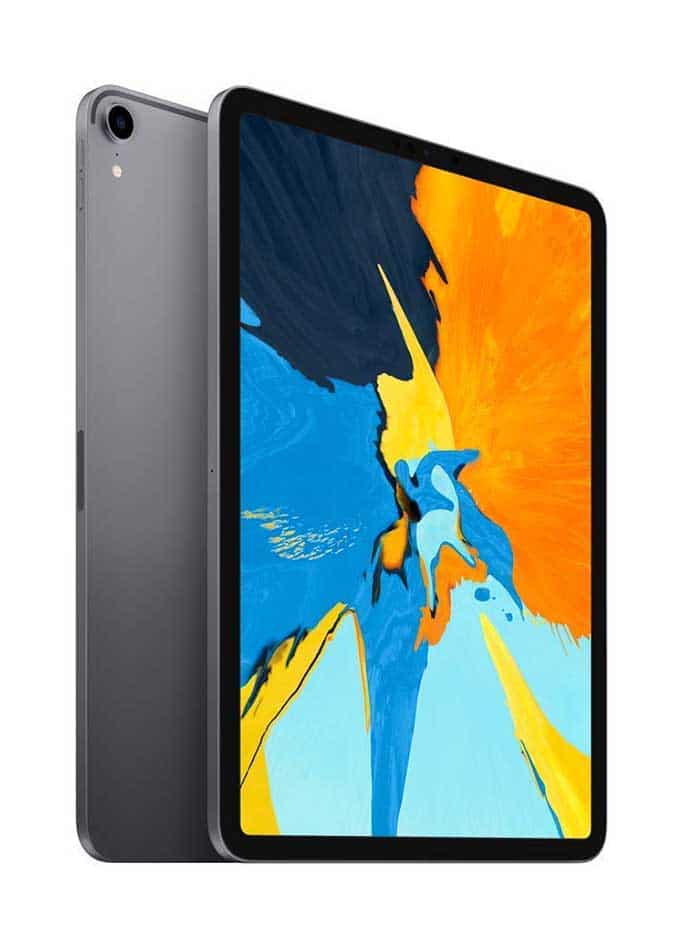
Soon we will be adding a detailed review of the iPad Pro and a comparison against its main competitor, the Microsoft Surface Pro 6.
We are talking about the 2nd generation iPad Pro here. Available in two sizes (12.9 inches or 10.5 inches) the 2nd generation iPad Pro is a great tablet computer for drawing, sketching and even graphic design.
On the 12.9 inch version, the iPad Pro has some similarities with the Microsoft Surface Pro 4 in terms of size and specifications. The specs are also impressive. Now of course the main difference is in the operating system, since the iPad Pro uses Apple's iOS.
The 12.9 inch model has a screen resolution of 2732 x 2048 pixels (264 ppi) and the 10.5 inch model has 2224 x 1668 pixels (also 264 ppi). In both cases, the iPad Pro has a spectacular screen quality and resolution.
The digital stylus for the iPad Pro is the Apple Pencil. It is lightweight and comfortable in design, with Apple's minimalist touch (it does not have any buttons). However, bear in mind that the Apple Pencil is sold separately. You can read more details about the Apple Pencil further down.
The portability of the iPad Pro is excellent, which makes the iPad Pro perfect for carrying around and for drawing anywhere you go. The 12.9 inch iPad Pro is similar in size to an A4 sketch pad, and the 10.5 inch one is a bit smaller than that. Both of them are light and thin, perfect for carrying with you.
Simply pull out your iPad Pro when you are waiting for your turn at the dentist, and continue coloring the drawing you started sketching at the coffee shop a bit earlier. Pure pleasure.
- iPAD PRO 10.5'' (2nd gen)
- IPAD PRO 12.9'' (2nd Gen)
- APPLE PENCIL


► The Apple Pencil is sold separately from the iPad Pro. Here you can find the Apple Pencil:

iPad Pro (10.5'' and 12.9'' 2nd generation) technical specs:
How good is the Apple Pencil for drawing on the iPad Pro?
User opinions and reviews for regarding the Apple Pencil for drawing on the iPad Pro are quite positive.
The Apple Pencil has tilt sensitivity, which is quite an useful (and rare) feature, specially for digital illustration and for drawing and sketching in general, as it allows you to create more realistic and natural strokes.

Interestingly, Apple does not reveal how many pressure sensitivity levels the Apple Pencil has (Apple always so "special"), but the reality is that users speak wonders about it. Many agree that the drawing experience with the Apple Pencil on the iPad Pro is fluid, smooth and natural.
Apple has developed the ProMotion technology which duplicates the refresh rate of the iPad Pro screen up to 120Hz (from the usual 60Hz) when it detects that you are using the Apple Pencil. This way, the delay from when you draw a line to when the line actually apears on screen is divided by 2, which means that lines appear more instantly on screen while drawing, making the drawing experience more fluid and responsive.

With respect to parallax effect, this is almost imperceptible in the iPad Pro compared with other tablets. It feels like lines appear on screen instantly, as soon as the tip of the Apple Pencil touches the screen, as if it was a real pen and paper.
The Apple Pencil gets charged by connecting it up to the Lightning connector on your iPad Pro. The Apple Pencil battery can last around 12 hours of use. This at first glace may not seem like much, specially when compared with other digital styluses (the Microsoft Surface Pen AAA battery lasts around a year before it needs to be replaced).
However the key here is that the Apple Pencil battery gets charged up pretty quickly. With only 15 seconds of charge, the Apple Pencil gives you an extra 30 minutes of use. There is also an USB adapter included so you can also charge it through USB.
But let's be fair, the Apple Pencil also has its own design flaws: for instance, something that can be a bit annoying is the fact that it is completely round (cylindrical body), so it has the tendency to roll off the table if the work surface isn't flat.
What apps exist for drawing and graphic design on iPad Pro?
The most used app for drawing on the iPad Pro is ProCreate, and it is in many aspects as good as the best drawing programs, allowing you to create spectacular drawings and sketches on your iPad Pro.
For graphic design on the iPad Pro, Affinity Designer was originally created for Apple devices, and is one of the most widely used apps for graphic design on the iPad Pro.
Other drawing apps for the iPad Pro are Adobe Photoshop Sketch and Autodesk Sketchbook.
Another interesting app is Duet Display Pro. This is a paid app that allows you to use the iPad Pro as a second monitor connected to a computer, so that you can use the iPad Pro as if it was a graphic tablet, somewhat like a Cintiq. This is something that by default only the Wacom MobileStudioPro tablet computers can do, however thanks to this paid software the iPad Pro can also be made to work as a graphic tablet.
Summing up: is the iPad Pro a good tablet for drawing and graphic design?
The iPad Pro 2nd generation is unquestionably an incredibly powerful and versatile device, now is it a good tablet for drawing and graphic design?
For professional use, the iPad Pro may not be the best option (although it depends what type of work you do), since most software packages used for general daily work are on Windows. However it is also true that more and more creative professionals are using the iPad Pro combined with a Mac or a PC, especially in the first stages of creative projects.
This is not necessarily to do with the iPad Pro itself, it's more a strategic decision of big software companies making professional creative programs such as Photoshop, Illustrator, InDesign, After Effects or Premiere Pro who prioritize PCs and Macs for their software suites.
Other than that, the iPad Pro 2nd generation is a great tablet to have fun drawing, sketching, designing concepts and letting your creativity fly free.
Still in doubt as to what tablet to buy for drawing, graphic design or 3D? We answer your questions
If you have any questions about tablets for drawing and design, feel free to ask them down below on the comments section. We answer all questions and we will try to help you.
If you haven't done so yet, take this quick test (it's fun!) and you will discover the perfect Tablet for you.
The tablet computers reviewed here are specifically chosen for drawing, graphic design, 3D, image and video editing, and digital creation in general. In reality these are powerful computers that you can carry around with you and will allow you to do not only digital drawing but also more generic tasks.
If you are looking for something cheaper, look at the links below:
I want a graphic tablet with screen (Pen display tablet)
Wrapping up...
In this article:
- Take This Test: Find Your Ideal Tablet
- Tablet computers for drawing Vs Graphic tablets
- What is the best type of tablet computers for artists? Windows, Apple or Android?
- Best Windows Tablet Computers for Drawing, Graphic Design and 3D
- The Best iPad Pro models for drawing and design
- Best Android Tablets for Drawing
- Still in doubt? Ask me anything
Related articles:
 (3 votos, promedio: 5.00 de 5)
 Loading...
¿Any questions? Leave us a comment and we will reply back to help you.
Hi, I have a college student who needs a drawing tablet for a graphics design class that uses Adobe Illustrator. She wants to see on the tablet’s screen what she is drawing instead of on the laptop screen. My question: Is it possible to use the Samsung S6 Tablet as a second monitor for her Windows 10 laptop and be able to draw on the tablet (using the smartpen) using the Adobe Illustrator coming from the laptop (since the tablet is being used as a second monitor for the laptop)? Is there something different that would work better?
Hi Gary,
The ideal solution for what your college student wants to do, is a graphics tablet with screen, a.k.a. pen display tablet, or drawing tablet with screen. Check out this post and you will see what I mean.
Now, in terms of trying to use the Samsung Galaxy S6 tablet as a second monitor, or effectively as a pen display drawing tablet connected to a computer: there are certain ways to do something close to what you want, but probably not the ideal setup. Basically what you want is to use the Galaxy S6 as a pen display drawing monitor and for that you need two things, one is to duplicate the computer monitor onto the S6 screen, and two is to send the touchscreen information from the pressure sensitive pen of the tablet back to the pc.
There are some solutions to do one of these things at a time, but I don’t know of a smooth way to do both at the same time, at least on Android. For example, there are apps like Virtual tablet that will allow you to use your tablet as a drawing tablet, but without the display mirroring.
So, while using an android tablet as a pen display tablet with a pc may be desirable, I don’t know of an easy solution to do this right now, just intermediate solutions that may not provide the smoothest drawing experience.
As I say, the ideal way is to use an actual drawing monitor like these.
I hope this is useful at least to some degree. If you find out a good solution for this please let me know as I’m sure more people may be interested in this.
I have a Surface Book 2.
Is this as good as the Surface Pro 6 for drawing?
Hi George,
The Surface Book 2 supports the Surface Pen so you can draw on screen, draw and design using Photoshop, Krita, Clip Studio Paint, even do 3D modeling. On some models you can even get a dedicated graphics card which is also a great thing for drawing on a tablet pc like this as everything graphics related will be smoother.
In summary, you can do most things that you can do with a Surface Pro with a Surface Book 2 or Surface Book 3.
My name is Tendai. I need to teach mathematics online, so I was looking into whether I should buy a drawing tablet but I need to know whether if I am to purchase an ordinary tablet will it perform these functions and allow me to do my lessons recording them just like if I am using a drawing tablet. Which one is more appropriate for me as an educator?
Hi Tendai, if you are going to teach online, I think you are unlikely to be using an ordinary Android tablet for that purpose. I imagine you want something more like a Windows or Mac computer, because of the software you will need for teaching online is likely to be on Windows or Mac (this is my assumption). If that’s the case then you either buy a Windows tablet (like the Microsoft Surface Pro) or you buy an Apple tablet (i.e. and iPad, iPad Air, iPad Pro, etc). Or, otherwise, you buy a drawing tablet and you pair it with a Windows PC or Mac.
To sum up, option A is buy a Windows Tablet or an iPad, and option B is buy a drawing tablet and pair it with a Windows PC or Mac. These two options will allow you to perform similar functions in terms of your online teaching.
Now, which one is more appropriate for you, you decide based on your circumstances. Here are some pros and cons. Are you going to be moving around while you teach, standing up etc? Then maybe you want a Windows tablet or an iPad. Are you going to be sitting on your desk and just share screen and stream your lesson while you sit at your desk? Then maybe you are ok with a PC or Mac plus a drawing tablet. Do you want to keep using your current PC or Mac and you don’t want an additional tablet? Then you can just buy a drawing tablet. Do you want a low cost option? Then definitely a drawing tablet is going to be cheaper than a Windows tablet or an iPad.
I hope this helps. All the best