
These are the Top 10 best graphics tablets for drawing digitally, graphic design, animation and 3D modeling, as well as digital illustration and photo retouching.
If you are thinking of buying your first drawing tablet or you want to know how to find out what is the best drawing tablet for you, it is highly recommended that you check out this quick guide about how to pick a graphics tablet.
If you are in doubt, take this simple test and you will immediately know what graphic tablet is right for you.
If you want personalized assistance, we can help you decide which model to get or answer any questions you have about graphics tablets, just leave a comment in the comments section and we will reply to you as soon as we can.
Disclosure: This post may contain affiliate links. That means if you buy something we get a small commission at no extra cost to you (learn more). This allows us to keep this website alive.
Bear in mind that there are 3 main types of drawing tablets:
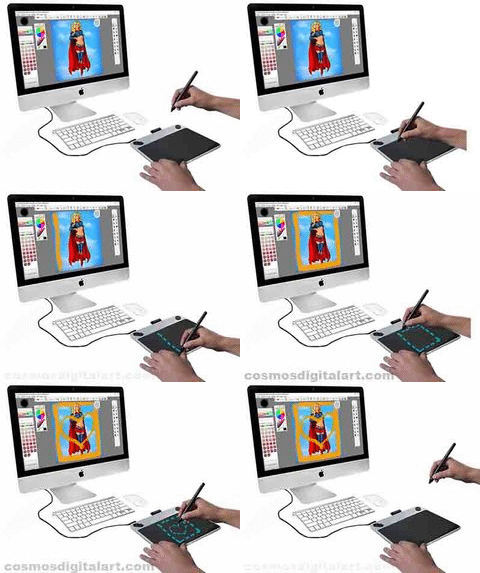
1. Drawing tablets without a screen
- They don't have a screen
- The get connected to a computer through a USB cable or through Bluetooth if they have built-in wireless functionality
- They are generally the cheapest drawing tablets
- See the best drawing tablets without a screen
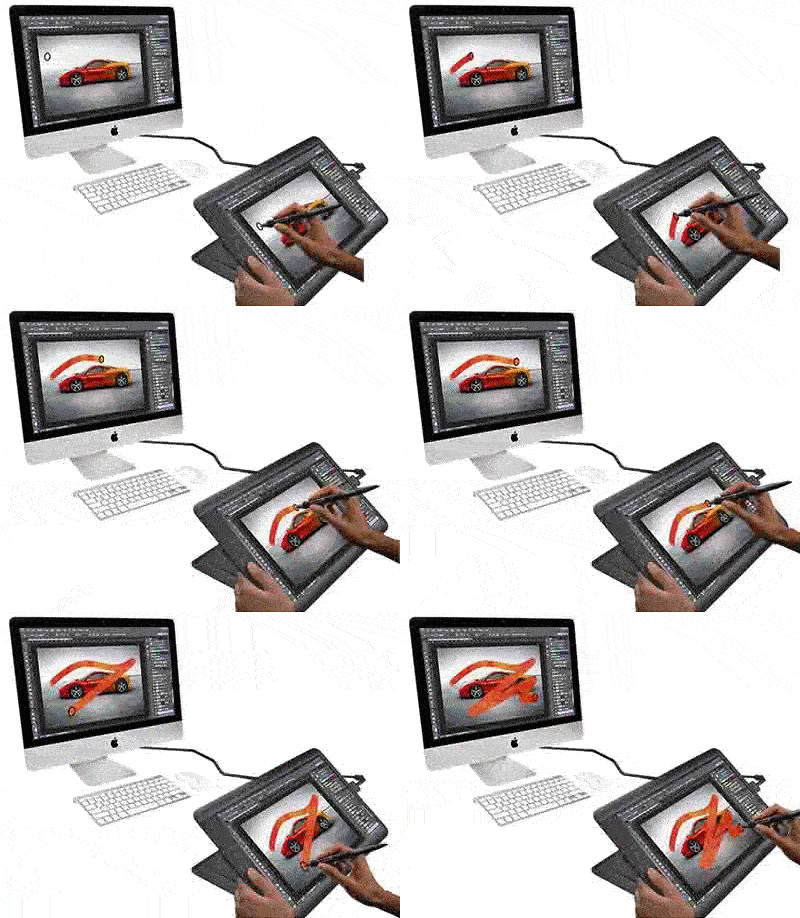
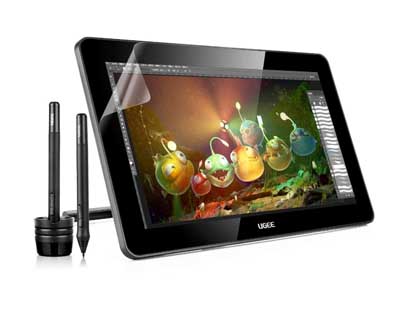
2. Drawing tablets with screen (pen display tablets)
- They have a digitizer screen that serves as a drawing monitor
- You draw directly over the screen of the tablet, which is more natural
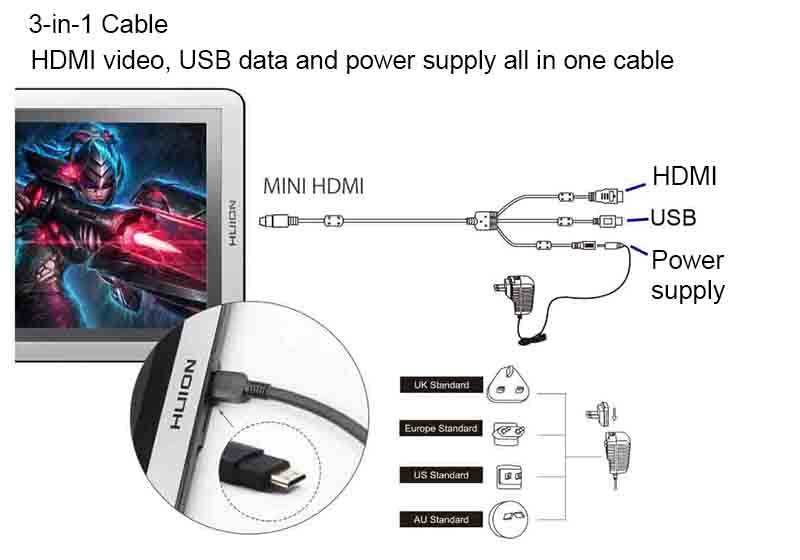
- They get connected to the computer through USB and HDMI cable, plus another cable for supplying power to the tablet (some have all this in a 3-in-1 cable)
- They are more expensive than the tablets without screen, but they are much better
- See the best drawing tablets with screen
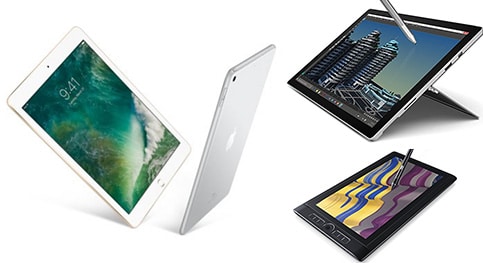
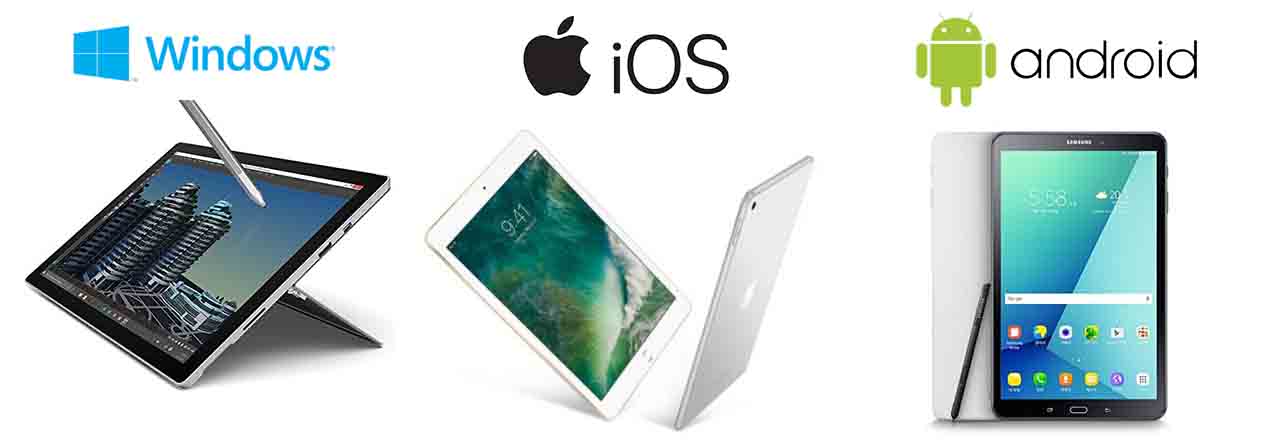
3. Tablet computers, with their own operating system
- They have an operating system such as Windows, iOS or Android
- You don't need to connect them to another computer
- They run the drawing and design software by themselves
- They are the most expensive ones, as they are really a full computer
- See the best tablets (with operating system) for drawing and design
Further down you can find the Top 10 best drawing tablets. Enjoy.
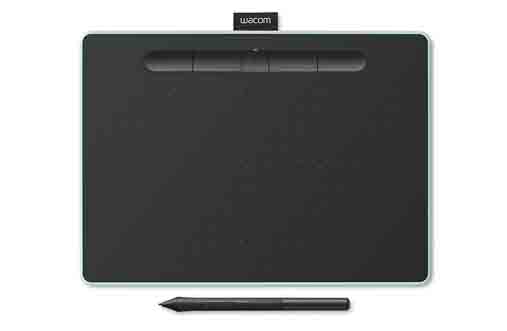
IN THIS ARTICLE:
- Take this Test: Find Your Ideal Drawing Tablet
- The best drawing tablets for artists, graphic design and 3D
- The best drawing tablets with screen (best quality-price ratio)
- The Best Windows tablet for drawing, graphic design and 3D modeling
- The Best Android tablet for drawing (NOT for graphic design or 3D)
- The Best iOS tablet for drawing and graphic design (NOT for 3D)
- The best all-in-one tablet computer for any 2D or 3D creation
- How to choose a graphics tablet
- Extra: Bonus trick for tablet owners
These are the best graphics tablets without screen because of their good quality-price ratio. They are also great drawing tablets for beginners (except the Wacom Intuos Pro M).
These graphics tablets are perfectly suitable for drawing with Photoshop, Illustrator, Krita, or to use 3D modeling/sculpting programs such as ZBrush, Maya, 3D Studio Max and so on.
Award-winning drawing tablet, this model beat Wacom Intuos and Intuos Pro in our comparison and review (and it's cheaper)
[ What makes this drawing tablet the be at the Top? Find out here. ]

With an award-winning design, this drawing tablet surpasses Wacom tablets in various aspects. We tried out this drawing tablet and the performance was great.

>>> Find all about this drawing tablet in this article.
Have a look at the facts in the link above (plus some impressive videos) and judge by yourself. Now here is the rest of the Top 10.
Best wireless drawing tablet for its quality-price ratio. Wireless, 8192 levels, battery-free pen, good price and good reviews.

[Click on the image to see it on Amazon]
This is an excelent graphics tablet for beginners and for intermediate users. Great for drawing, graphic design, photo retouching with Photoshop, as well as animation and 3D modeling/sculpting.
XP-Pen is a well known Japanese brand, quite famous in the world of digital illustration and graphic design.
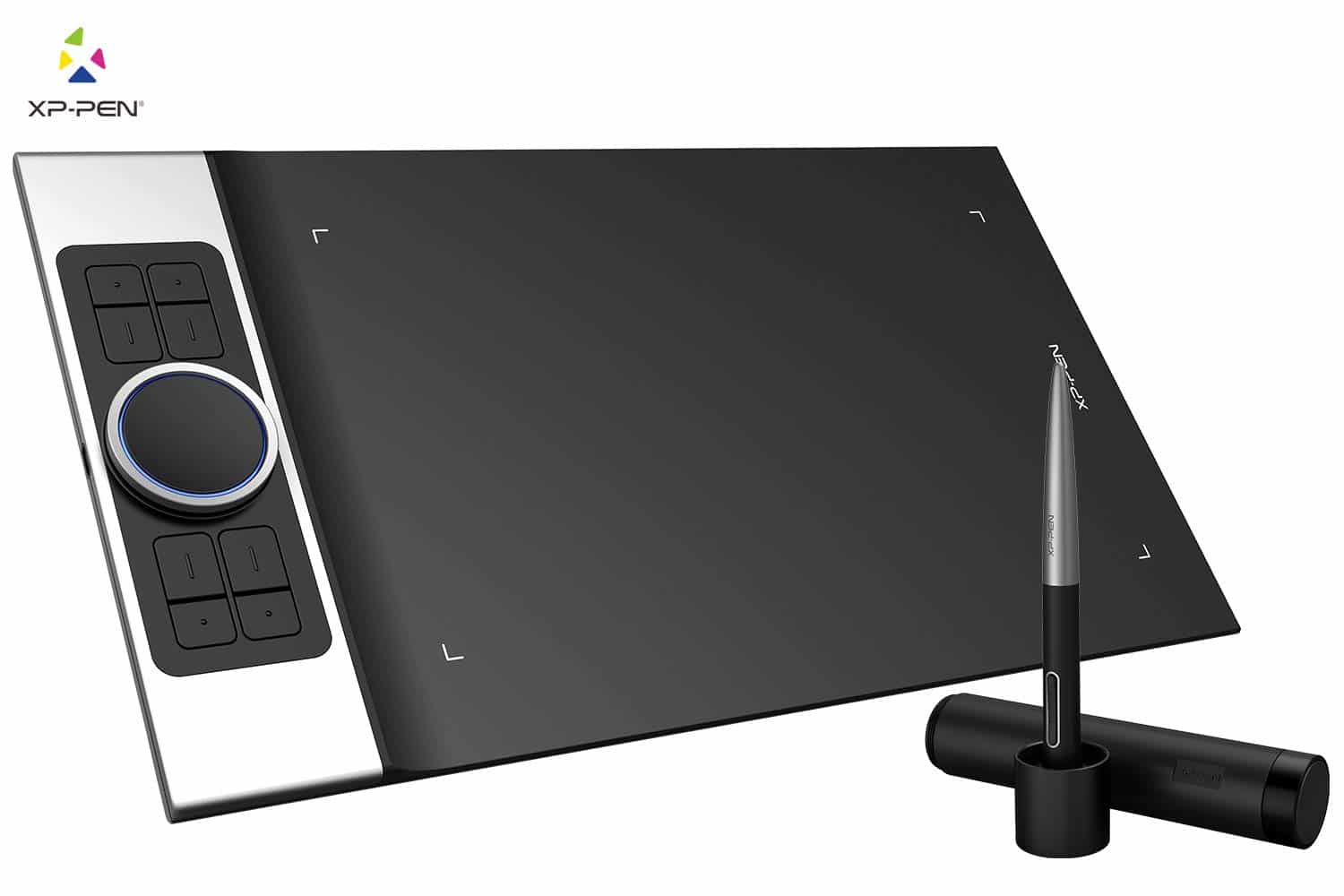
The Star 06 is a Medium size tablet, which we consider the best tablet for most uses (not too large, not too small). It can be used in wireless mode as well as in normal mode with a USB cable. It has 6 quick access shortcut keys and a rotary dial which is quite handy for zooming, changing the brush size, moving around the canvas, etc.
Summing up, this is a great drawing tablet for anything related to visual arts in 2D or in 3D. You can check its price here.
The best cheap graphics tablet, ideal for beginners
[Click on the image to see it on Amazon]
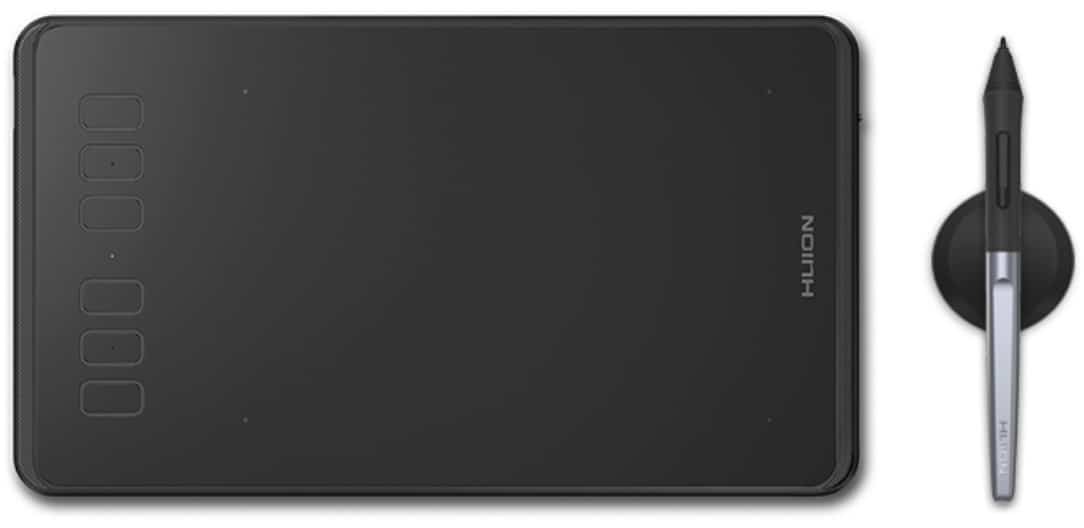
Pressure sensitivity: 8192 levels + battery-free | Connectivity: USB | Active Area: 6.3 x 3.9 inches | Weight: 277 grams, 8mm thickness
The Huion H640P is one of the best options as a drawing tablet for beginners. For a small tablet like this, It does have pretty solid specifications including 8192 pressure sensitivity levels and a battery-free digital stylus.
Additionally, it is a really lightweight and portable device, weighing only 277 grams and being only 8 mm thick (just a bit thicker than an iPhone).
► Note: Although we have chosen the H640P as the best cheap graphics tablet, you may want to go for the next level up which is its "cousin" the Huion H950P. The H950P is a very interesting option as it includes tilt sensitivity, plus it's a Medium size which is better for most applications. Up to you. Here you can compare the Huion H640P and the Huion H950P.
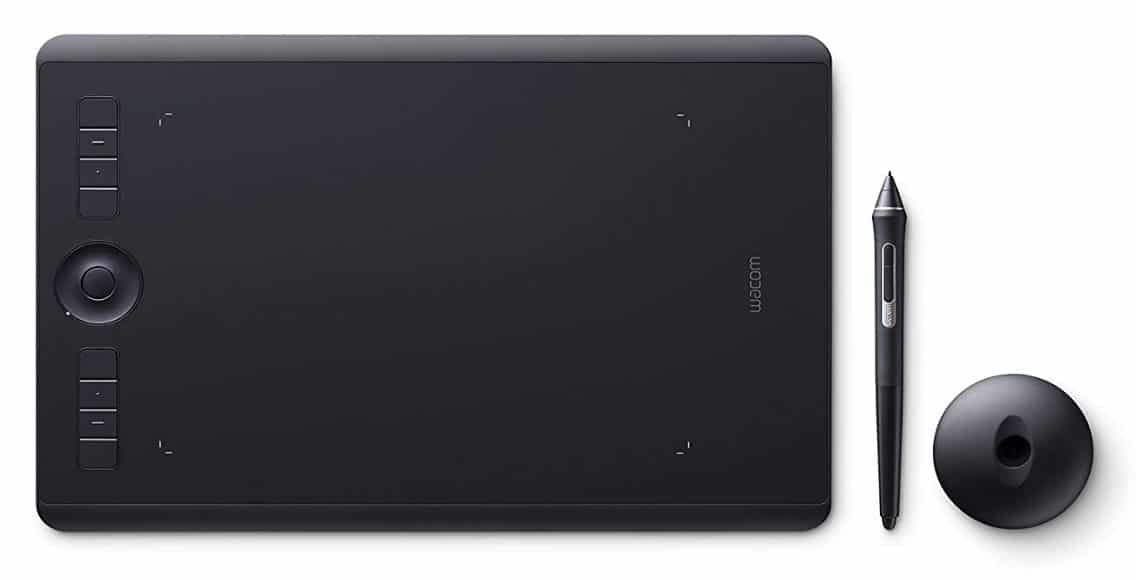
Professional graphics tablet with tilt sensitivity and multi-touch functionality
[Click on the image to see it on Amazon]
Tilt sensitivity: Yes | Multi-touch: Yes | Digital stylus: Wacom Pro Pen 2, battery-free, 8192 pressure sensitivity levels
Whether some people like it or not, the Wacom Intuos Pro M is the reference in graphics tablets for digital drawing, illustration, graphic design and 3D modeling. It does have its defenders and detractors, though. Some users consider Wacom equals top quality. Some consider it over-priced. In any case, it is only fair to recognize that this is the only graphics tablet on the market that includes Multi-touch functionality, Tilt sensitivity and Wireless connectivity.
This graphics tablet is widely used by professionals and some consider it to be the top of the range. Whether to buy this tablet or not, it depends on your preferences. You can check its price here.
The following pen display graphic tablets are included in the Top 10 for having the best features or the best quality-price ratio, or both.
If you want to see more in depth drawing monitor reviews, check out this article dedicated exclusively to pen display drawing tablets with screen.
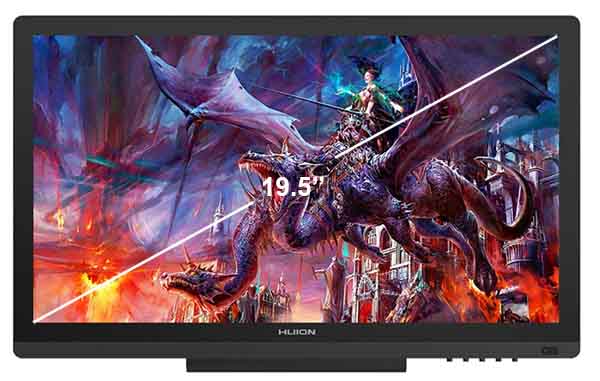
"The best drawing tablet with screen in terms of quality-price ratio"
[Click on the image to see it on Amazon]
The Huion GT-191HD one of the best selling graphics tablets with screen. It's no surprise that it has become such a success, as it has top quality specs for its price.
Huion Kamvas GT-191 V2 is on Amazon at a good price
Considered the best drawing monitor for quality-price ratio, on this screen size (the "golden" 19.5 inch size) and for its price, there is currently no other drawing monitor that matches the performance of the Huion GT-191HD.
The GT-191HD is among the top selling graphic tablets with screen. Its manufacturer Huion is the second top seller in graphic tablets right after Wacom.
The 19.5 inch screen of the GT-191HD is considered the "golden" size, as it is not too large to take up so much desk space, and big enough to allow ample comfortable drawing. Its rechargeable digital stylus with 8192 pressure levels can work for up to 350 hours with just 1.5 hours of charging time.
If we had to find a flaw, this would be the lack of programmable buttons, however this is an optional feature for many, as not everyone uses them, and many users prefer the convenience of a wireless keyboard anyway. You can see its price here.
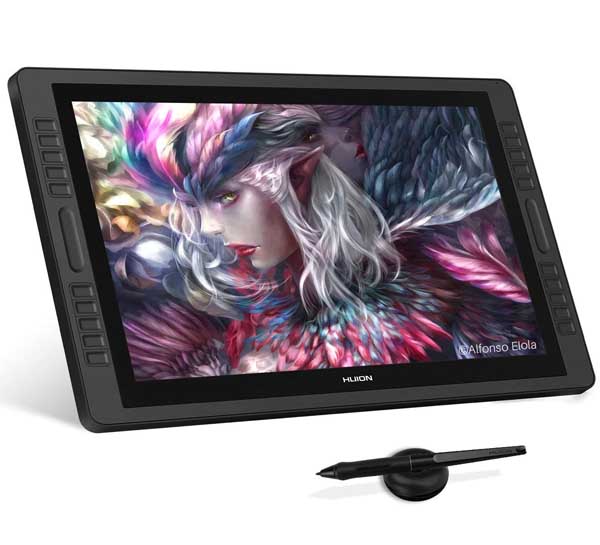
The best professional drawing monitor - like a Cintiq 22HD - but for less than half the price
[Click on the image to see it on Amazon]
Spectacular professional drawing monitor, similar to the ultra-famous Wacom Cintiq 22HD (but for less than half the price).
Huion Kamvas Pro 22 is on Amazon at a good price
The Kamvas Pro 22 is the most advanced, high-end pen display drawing tablet of the Huion range. It is a direct competitor to the renowned Wacom Cintiq 22HD, and even surpasses it on some specs, like the pen pressure sensitivity levels and the report rate (266 RPS is the fastest on the market nowadays).
It features a large 21.5 inch Full HD screen, with 10 programmable shortcut keys and 1 touch bar per side. The PW500 digital stylus of this tablet has 8192 pressure sensitivity levels, more than the Cintiq 22HD, and it also has Tilt sensitivity.
The most interesting feature of this drawing tablet is that it costs less than half the price of the Cintiq 22HD. Here you can check by yourself the price of the Kamvas Pro 22 versus how much a Cintiq 22HD costs.
Here you can read our full review of the Kamvas Pro 22.
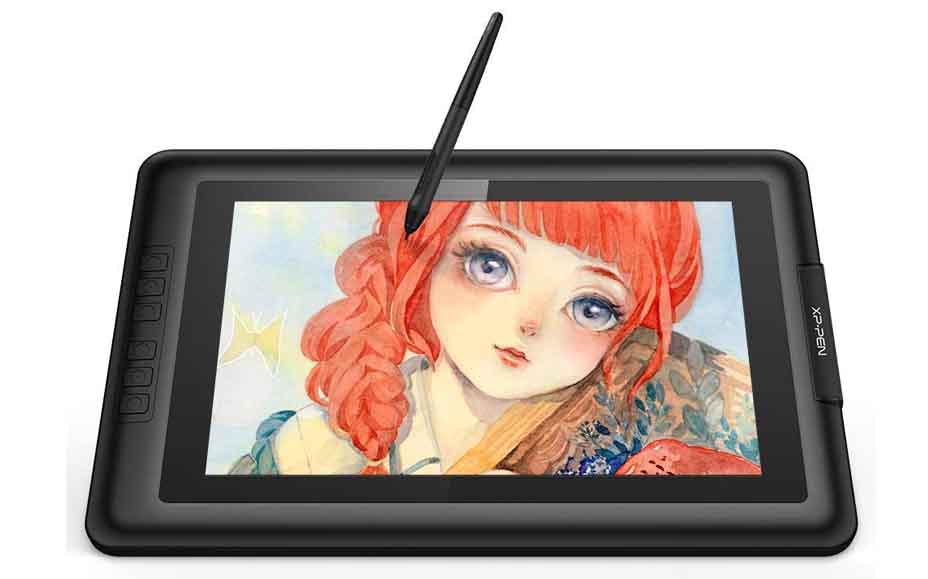
The best cheap graphics tablet with screen
[Click on the image to see it on Amazon]
Please note: this is the best cheap graphics tablet with screen, although not the cheapest one 🙂 It has the best specs in the price range of graphics tablets considered "cheap", but you can definitely find cheaper ones.
The XP-Pen Artist Display 13.3 V2 is a pretty good drawing tablet in what is considered the cheap price range, for all that it offers. For its price, it is very difficult to find a drawing screen that can match its characteristics: battery-free pen with 8192 pressure sensitivity levels, 6 programmable shortcut keys, Full HD screen and the convenient 3-in-1 cable.
If you have seen our selection guide at the bottom of this page, you already know that the 3-in-1 cable is a nice to have extra feature, which this tablet does have. Also its 13.3 inch screen is a compact and portable size but not as small as the 10 inch screens.
You can see this tablet in detail here.
The following tablet has been selected as the best Windows tablet computer for drawing, digital illustration, graphic design and using 3D modeling/sculpting programs, because of its impressive power and versatility at an affordable price.
If you want to see more models and in-depth reviews of tablet computers for drawing and design, check out this article dedicated specifically to tablet computers for drawing, graphic design and 3D.
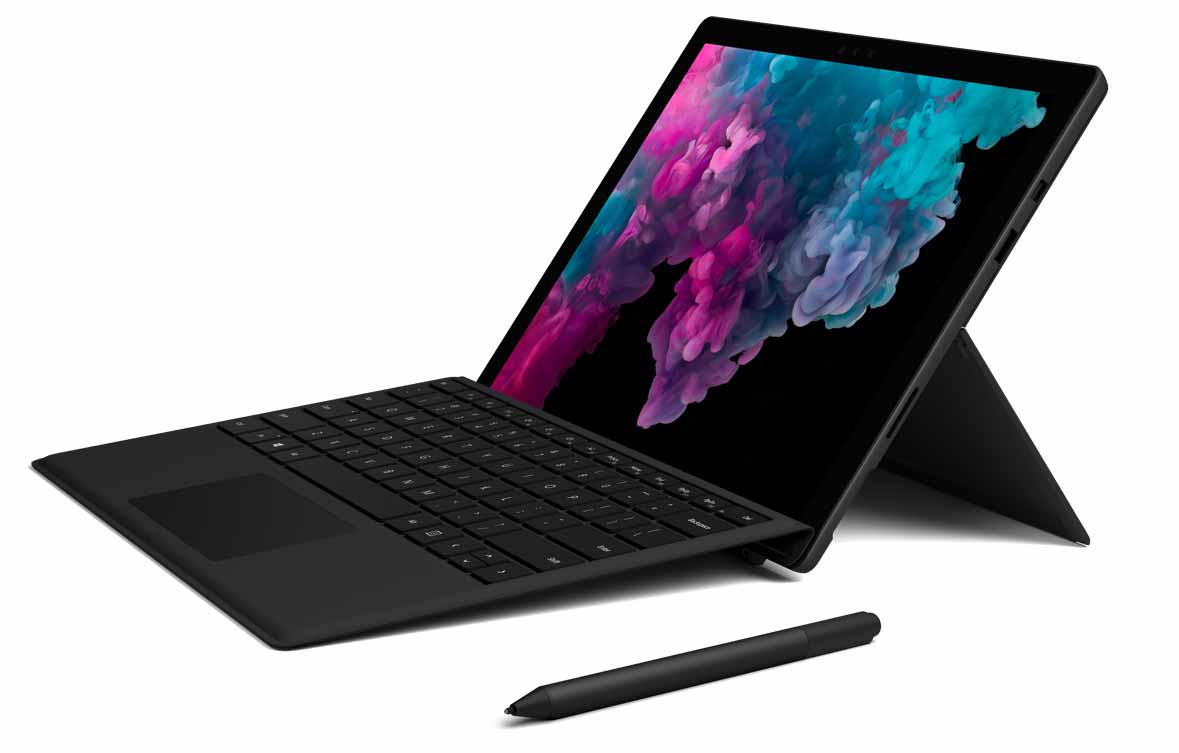
The best Windows tablet for drawing, graphic design and 3D
[Click on the image to see it on Amazon]
Great tablet for pretty much anything. Good for digital drawing and illustration, graphic design, photo-retouching and 3D design, modeling and animation.
The Surface Pro 6 is the reference Windows tablet computer for graphic design, animation and 3D design, only surpassed by the number one in this list (further down). In particular, the screen of the Microsoft Surface Pro 6 is a spectacular display, with better than Full HD resolution and an impressive colour quality that has been featured in some technical articles as one of the best screens found in tablets. The latest version of the Surface Pen (sold separately) has 4096 pressure levels, but it gives a pretty good drawing precision and good responsiveness when drawing on screen.
The Microsoft Surface Pro 6 is a full tablet computer, reliable and versatile, which you can use not only for designing with Photoshop, Illustrator or 3D modeling software, but also for any other general use software. Here you can check the price of this impressive device.
This is the Android tablet selected in the Top 10 for being the best one for drawing, at a reasonable price (not for graphic design or 3D, though). You can get getter tablets (i.e. with higher specs) but not for this price, and not so well suited for drawing.
If you want to see other Android tablets for drawing, read this article about tablets (with operating system) for drawing, graphic design and 3D.
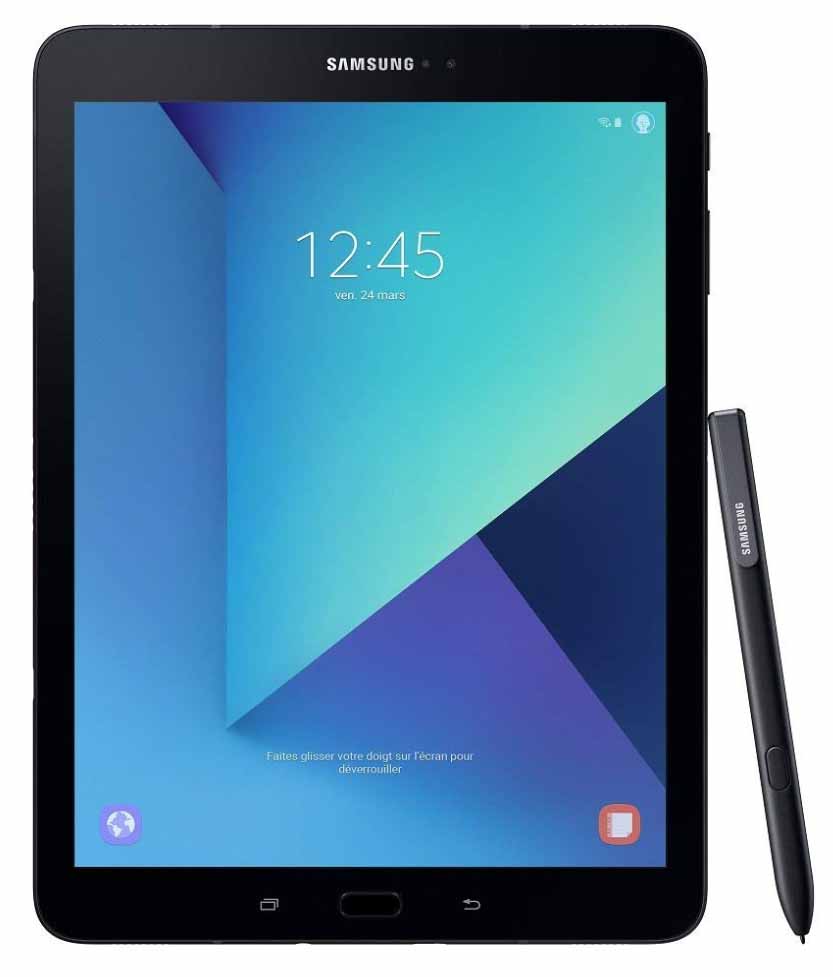
The best Android tablet for drawing (not for graphic design or 3D)
[Click on the image to see it on Amazon]
The Galaxy Tab S3 with S Pen is the best Android tablet for drawing. Here are its features:
With the new S pen with 4096 pressure sensitivity levels, the Galaxy Tab S3 is the best Android tablet for drawing (unless you want to buy the Galaxy Tab S4, which does have higher specs but is more expensive). The Galaxy Tab S3 is great for drawing on Android apps such as Sketchbook, it has almost no noticeable delay when drawing, it rejects well the palm of the hand and pressure sensitivity of the S Pen works pretty well.
The Galaxy Tab S3 costs less than an iPad Pro 2nd gen, and for drawing or as a daily use tablet it's pretty good.
If you are looking to buy an Android tablet for drawing, the Galaxy Tab S3 should be the first one you look at. You can check it out here. If you want a cheaper tablet, the previous model the Galaxy Tab A with S Pen is a complete best seller Android tablet for drawing (have a look, it has "only" 2500 reviews on Amazon).
Best iOS tablet selected for having the best features for digital drawing and graphic design, at an affordable price. We don't recommend it for 3D modeling/sculpting, as for this you will most likely have to use a Windows or macOS device. If you are looking for a tablet computer for 3D, look at the Microsoft Surface Pro 4, or the last tablet on this list.
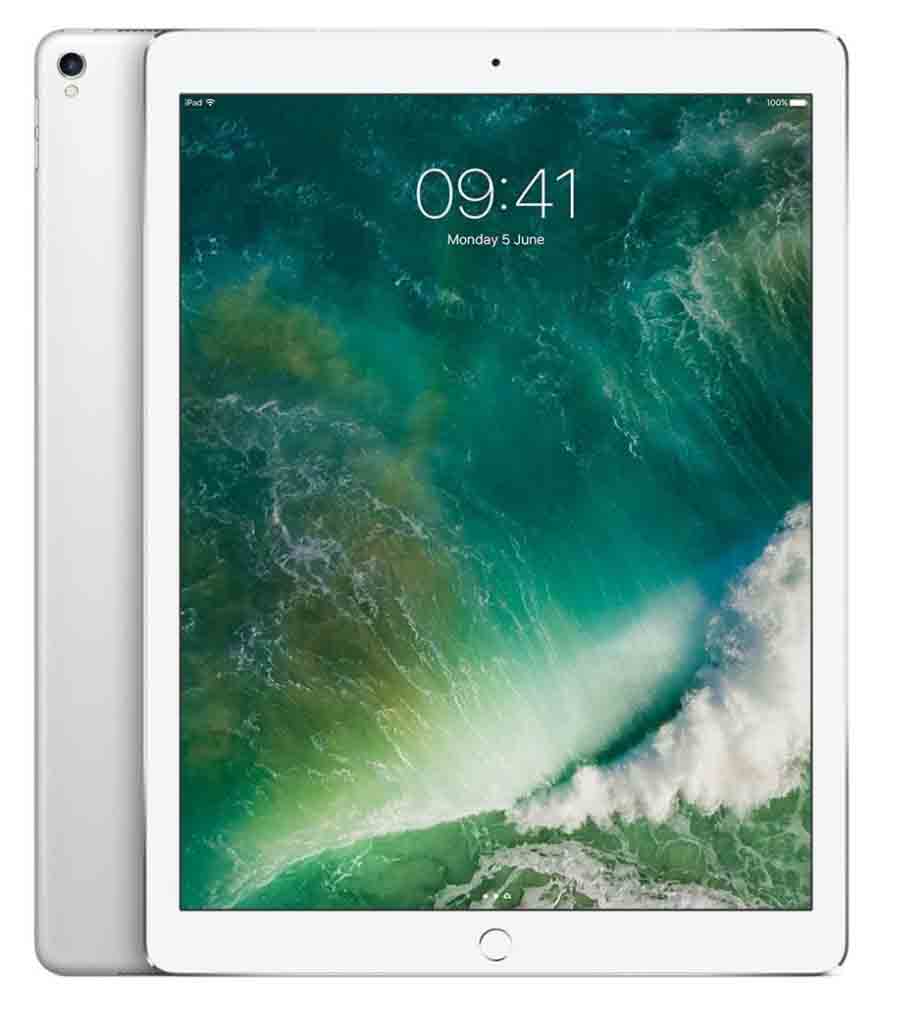
The best iOS tablet for drawing and graphic design (not for 3D)
[Click on the image to see it on Amazon]
The iPad Pro is great not only as a digital drawing tablet, but also for graphic design, thanks to apps like Affinity Designer. The downside is that the Apple Pencil is sold separately.
The Apple Pencil works pretty well when it comes to drawing over the screen of the iPad Pro, although Apple keeps secretive (as usual) about how many pressure sensitivity levels it has built in. You almost don't notice any parallax effect, and you get the feeling that the lines appear on screen just when the Apple Pencil touches the screen. On top of that, it has built-in tilt sensitivity, a great feature that not many tablets have.
Here you can see the price of the 2nd gen iPad Pro.
Simply the best.
We finally get to number 1. The number one on this list wins this title for being the tablet computer most optimized for digital drawing and illustration, graphic design, animation, 3D modeling/sculpting, video editing or any other creative activity in 2D or 3D.
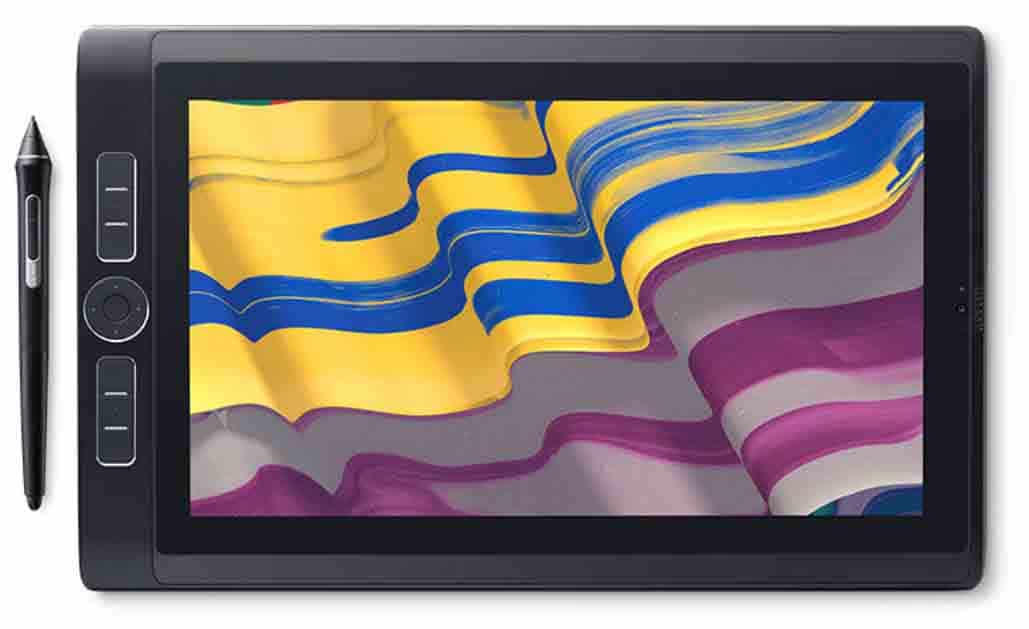
Simply the best tablet computer for digital drawing, animation and 3D modeling
[Click on the image to see it on Amazon]
All-in-one graphics tablet and computer, the MobileStudioPro can also be "turned into a Cintiq" by connecting it to a computer.
Wacom's MobileStudioPro is the reference tablet computer for graphic design, digital drawing/illustration and 3D creation. It is especially designed for drawing and digital illustration, graphic design, 3D modeling/sculpting, video editing and all creative applications in 2D and 3D.
This is not just a plain tablet, it is a powerful computer optimized for digital creation, with enough power to run the most demanding design software such as Photoshop/Illustrator, Adobe Premiere or 3D modeling/sculpting programs like 3D Studio Max, ZBrush or SolidWorks.
This is a tablet computer for drawing and designing at a professional level, for students or future professionals of 2D and 3D design. You can see the full review here, including a breakdown of all features and models of the range.
0. Extra: Bonus Trick
Use these guidelines as a reference when choosing what graphics tablet to buy.
► 1st) Choose the size (S, M, L) taking into account your desk's size. S (Small) is a very reduded size, M (Medium) is the most balanced size for most desks, L (Large) is great if you have enough desk space.

► 2nd) Choose whether you want your drawing tablet to be Wireless: this is one of the things that can make a noticeable difference in terms of comfort while using the graphics tablet. A wireless drawing tablet is always a good thing as it reduces the amount of cables over your desk and allows you to work more comfortably. Therefore our recommendation is to make Wireless functionality a priority when choosing a drawing tablet, if at all possible.
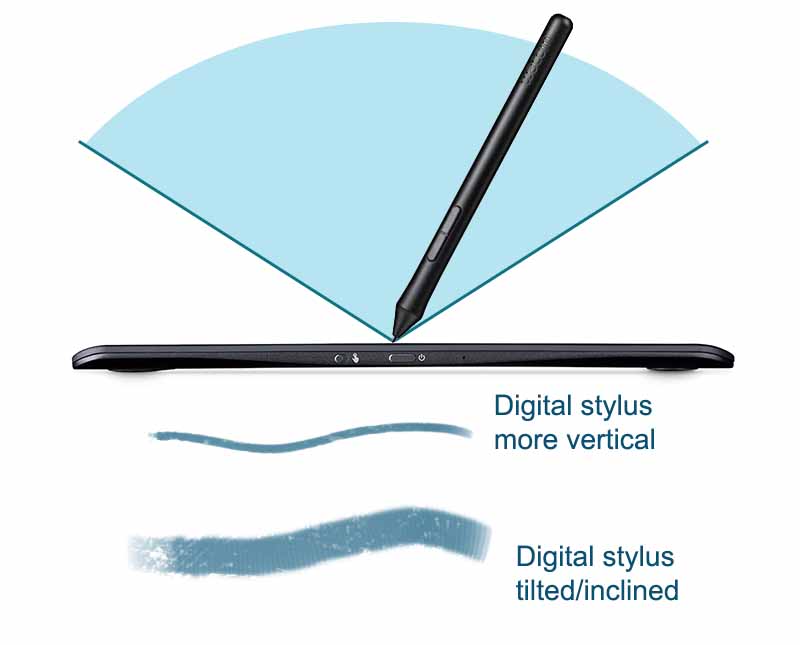
► 3rd) Choose whether you want tilt sensitivity: This means that you can change the thickness and texture of the brush stroke depending on the inclination of the digital stylus with respect to the drawing surface. This is useful to simulate traditional drawing techniques such as charcoal, real brushes, etc. This feature is usually only on the top range graphics tablets such as the Intuos Pro, etc. Hence, decide beforehand if you are willing to pay more for a graphics tablet with this capability.
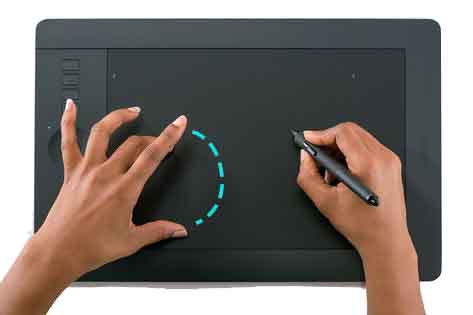
► 4th) Choose whether you want multi-touch functionality: This means that you can zoom in and out with two fingers on the tablet surface, or you can pan and move around the canvas with multiple finger touch gestures on the tablet surface. This feature is usually only found in top of the range drawing tablets. You will have to decide if you want your drawing tablet to have this feature.
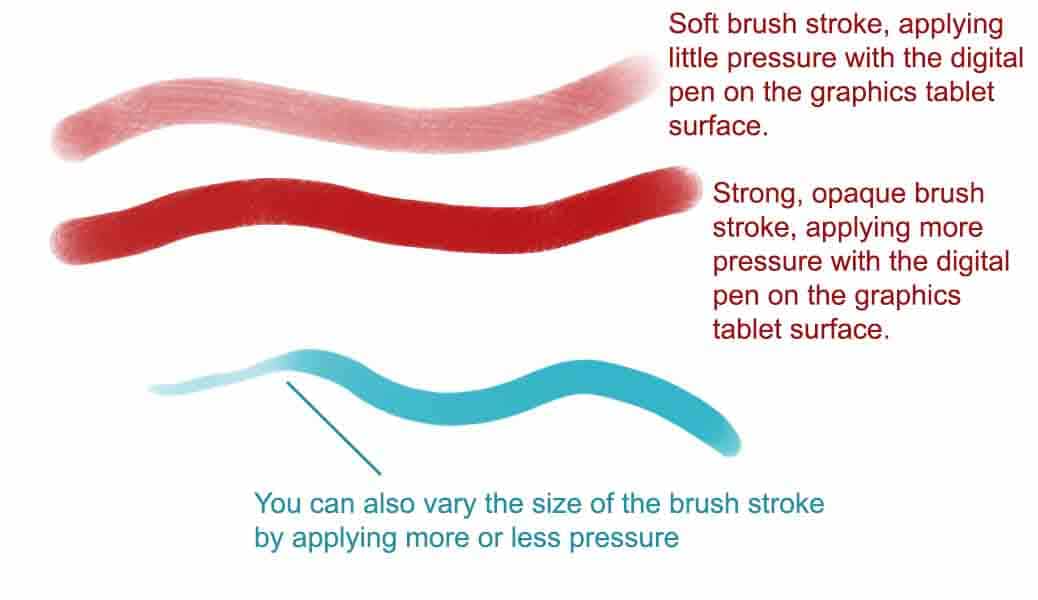
► 5th) Pressure sensitivity levels: All graphics tablets have pressure sensitivity, although some have more levels than others. This determines how accurately does the tablet detect the pressure applied on the digital stylus while drawing. Bear in mind that pressure levels is not the only factor to determine the responsiveness, accuracy or smoothness while drawing on a graphics tablet. What matters is an overall smooth and natural response, no broken lines, no delay when drawing lines, etc. But in general more pressure levels should be a good indicator of the accuracy of the drawing tablet.
► 6th) Battery-free digital stylus: Most graphic tablets include a rechargeable digital stylus which means it has a small rechargeable battery inside, which you have to recharge through USB every so often. Some tablets however include a battery-free digital stylus which means you don't have to care about running out of battery or recharging it. This is convenient as it is one less thing to worry about. In general this is a good feature to have, so if you can get a graphic tablet with a battery-free pen, even better.
When buying a graphics tablet with screen or drawing monitor, follow these guidelines:
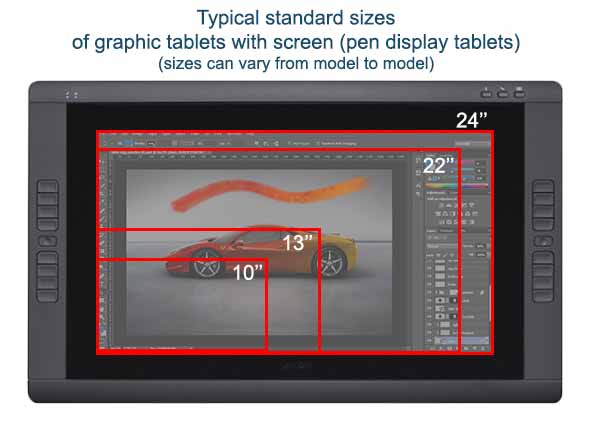
► 1st) Choose first the size of the drawing screen: this is measured in inches (13'', 15.6'', 19.5'', 21.5'', etc). 10 inches is relatively small, up to 15.6 inches it's a portable, compact medium size. 19.5 inch is a pretty good size for most uses, somewhat of a "golden" size, ample enough to draw comfortably but not too large to take up all your desk space. 21.5 inches is a large screen, great to draw on, just make sure you have enough desk space.
► 2nd) Decide whether you want programmable shortcut keys: Some drawing monitors have programmable shortcut keys on one or both sides, which can help speed up your workflow or comfort while drawing. Although some users may find these convenient, they are not essential, so it is perfectly fine to get a pen display tablet without shortcut keys, it just depends on your personal preference.
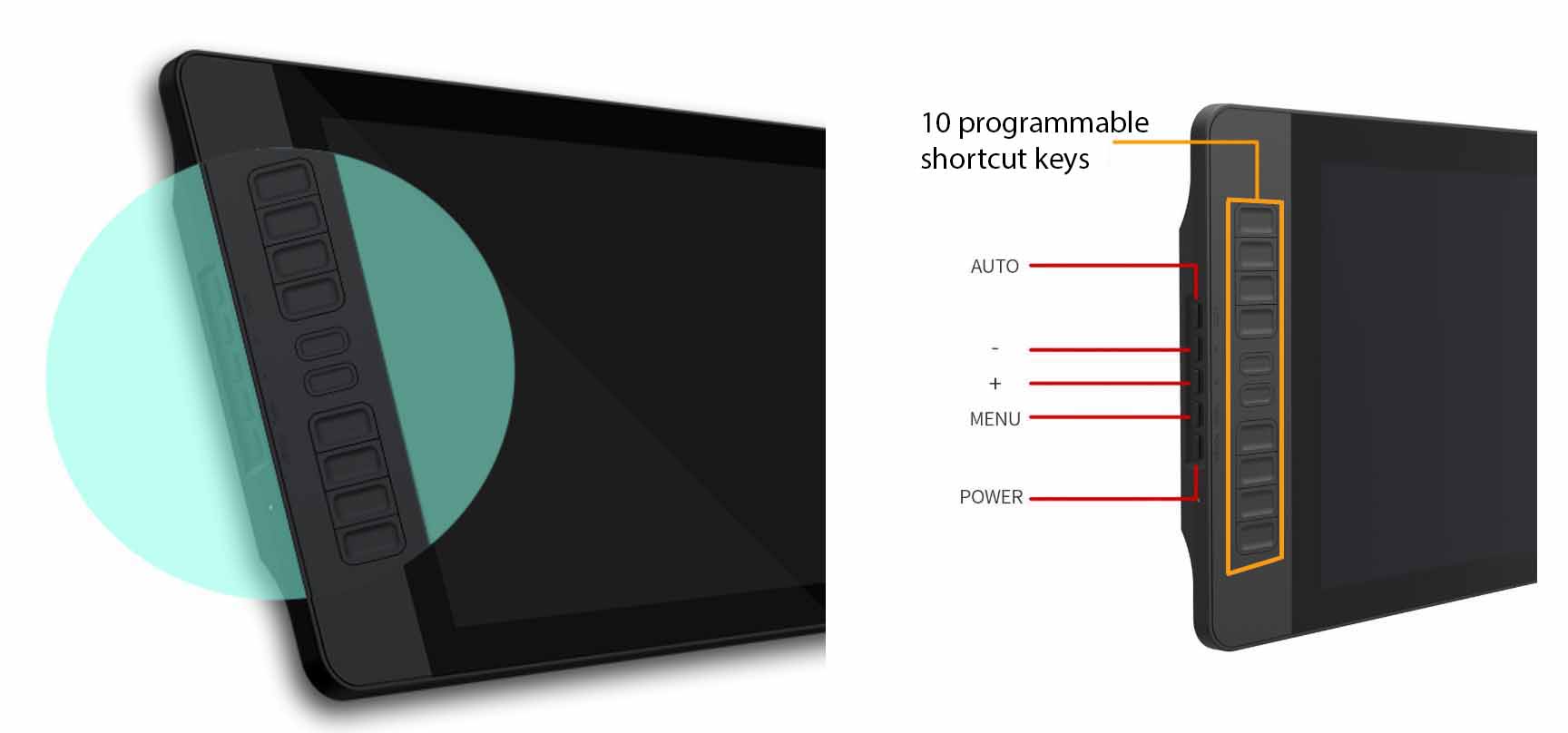
► 3rd) Screen resolution and colour quality: Ideally you would get a Full HD or higher resolution screen. Not all drawing screens are though, and this is a factor in the cost of a drawing monitor. Drawing tablets with lower resolution screens can be cheaper and still be good enough depending on user needs. It is also important for the screen to have good color quality or color gamut, this is measured in % of NTSC or % Adobe RGB. If you are on a tight budget, you can save some money buying a pen display tablet with a non-Full HD screen.
► 4th) "Nice to have" extras: 3-in-1 cables. Pen display tablets generally use 3 cables: a HDMI cable for video, a USB cable for data, and a separate power supply cable. Some tablets however include a convenient 3-in-1 cable that incorporates the 3 functions in one cable, reducing the amount of cables over your desk and helping you keep a much tidier workspace. If you can get a pen display tablet with a 3-in-1 cable, it's a nice to have extra.
► 5th) Another "Nice to have" extra: anti-glare coating. Yet another nice to have, some graphic tablets with screen incorporate an anti-glare coating or glass that reduces reflections, especially when working outside on bright days. Manufacturers like XP-Pen are starting to add this feature to their drawing tablets, so if you can get a tablet with this, it's a plus.
To help you in your selection process, use our interactive graphic tablet selection app which will help you to find the best drawing tablet for your needs in a fun way 🙂 .
In the following articles you will find more detailed reviews of graphics tablets and tablets computers:
Summing up...
This list should help you find the best tablet for you depending on what you are looking for.
THE BEST GRAPHICS TABLETS
- Take this Test: Find Your Ideal Drawing Tablet
- The best drawing tablets for artists, graphic design and 3D
- The best drawing tablets with screen (best quality-price ratio)
- The Best Windows tablet for drawing, graphic design and 3D modeling
- The Best Android tablet for drawing (NOT for graphic design or 3D)
- The Best iOS tablet for drawing and graphic design (NOT for 3D)
- The best all-in-one tablet computer for any 2D or 3D creation
- How to choose a graphics tablet
- Extra: Bonus trick for tablet owners
Still in doubt as to what drawing tablet to buy? Ask any question in the comments
Hope this helps you find the best drawing tablet for your needs.
If still have questions, we can help you out. Ask your question in the comments section further down and we will reply to you with personalized information.
If you haven't done so yet, take this quick test (it's fun!) and you will discover the perfect Drawing Tablet for you, based on your budget and requirements.
 (3 votos, promedio: 5.00 de 5)
 Loading...
Have you got any questions? Leave it in the comments and we will help you out. What budget do you have? Are you in doubt between two models? Drawing tablet with screen or without? Any other questions?
My 14 year old daughter want a drawing tablet to do (learn) ANIMATION ! She has a HP LAPTOP. Limited budget MOSTLY because I fear her LEARNING THE software SHE will GET DISCOURAGED . I have to get her one, we won’t know till she tries. So which one to recommend . Thank you
Hi Stacey,
If you want a decent compromise between budget and a drawing tablet that is easy to use so she won’t get discouraged quickly, then you could have a look at a tablet like the XP-Pen Artist Display 12.
This is one of the cheapest drawing tablets with screen and it’s a pretty good tablet anyway. It does have a screen, which makes it easier to use than a drawing tablet without screen. The fact that it does have its own screen means that your daughter will attach the drawing tablet to her laptop and then she will be drawing on the tablet’s screen, and anything she draws there will of course translate to the laptop, whether she is using animation software, or drawing, etc.
This is much more natural and easy to use than the standard drawing tablets without screen, where she would be looking at the laptop screen while she draws on the tablet’s surface, which is less natural and requires a bit getting used to (but once used to it, it also works just fine).
If you want to know more about this type of drawing monitors, have a look at this article about drawing tablets with screen.
Now, if you want something even cheaper than that, you have to step down to the drawing tablets without screen category. In this category, there is plenty of choice, but to keep things simple, I would recommend you getting a medium size tablet with wireless connectivity. You can get drawing tablets like these quite cheap nowadays. To give you a few options without screen, I’d recommend you checking out the XP-Pen Star 06,or the Wacom Intuos M with wireless (CTL-6100-WL model). The first one is cheaper, but some people prefer Wacom for the brand. Finally, if you want something quite cheap, the Huion H610 pro V2 is not wireless, but it’s pretty good and the price is pretty affordable.
I wouldn’t recommend you going much cheaper than that, think about the possibility that your daughter will actually like the experience and will stick to it. With any of these options you should have a drawing tablet that works fine in the long run.
Finally, if your daughter wants to learn animation, she can download free versions of animation software and find tutorials to learn the interface and get going and doing her first projects. I think they key is that she learns in a hands-on, practical and fun way. In this article you have a list of programs for 2D and 3D modeling some of which are used in animation, here you can download free versions and tutorials of those programs.
I hope this helps you. If you need any other info, please let me know and I will do my best to help you.
Thanks
I need to know if XP Artist 12 or 13.3 has Bluetooth or wireless connectivity?
Hi Ahmad,
Generally speaking pen display drawing tablets don’t have Bluetooth or wireless connectivity. That is something that can be found on some drawing tablets without screen though.
Pen display drawing monitors need to send and receive video data from the computer, as well as the stylus data (position, pressure, tilt, etc).
Therefore, they use cables (HDMI for video and USB for data) to connect to the computer, so they don’t have Bluetooth or wireless connectivity like some graphic tablets without screen do.
Additionally, they need a supply cable in order to power the drawing monitor.
So, in general, pen display drawing monitors use 3 cables (one for video, one USB for data and one for power supply of the tablet) and don’t have Bluetooth or Wireless. Some drawing tablets without screen do use Bluetooth and can work wirelessly though, since these tablets don’t have a power-hungry screen, they don’t need to send video data and just the digital stylus data is small enough to be sent wirelessly over Bluetooth to the PC.
This is not to say that it is impossible, perhaps it could be possible to have a pen display drawing monitor which uses Bluetooth to send stylus data wirelessly and therefore get rid of the USB cable, but most likely it would still need a cable for the video signal and another one for power supply of the tablet.
The XP-Pen Artist Display 12 and XP-Pen Artist Display 13.3 are pen display drawing monitors (quite good ones by the way), so they don’t have Bluetooth or wireless. However, these two drawing monitors come with a 3-in-1 cable included, which means that they bundle all the 3 aforementioned cables into a single cable, which is great for reducing cable clutter and making things so much tidier in terms of cables.
I hope this helps you. Please let me know if you have any other questions.
Looking for tablet and pen with no screen. Would like to use it for Premier+ Software for embroidery on a PC computer. Can I use the tablet and pen in this program?
Hi Joan,
Yes, you can use any drawing tablet and pen with or without screen with the Premier+ Software for embroidery, or with any other software, since really what the tablet does is simply controlling your mouse pointer using the pen rather than the mouse. So from that point of view the software doesn’t know whether you are using a drawing tablet or a mouse, since all you are doing is moving the cursor around, clicking and drawing vector graphics with your tablet in that particular software, so you will be fine.
In addition to that, if you were to use any other drawing program like Photoshop, Clip Studio, Krita or even 3D modelling software that supports pen pressure and tilt recognition, then you would have the added benefit of pressure and (depending on model) tilt sensitivity on a graphic tablet, which you wouldn’t have on a mouse.
Hope that makes sense. Thanks.
Hi,
I am a student of Interior design and want to purchase a tablet where I can use Autocad, SketchUp, 3ds max or other designing software. Can you please help me with this? Since I am still a student my budget is medium and not too high. Thank you so much!
Hi Moumita,
I imagine you want to buy a drawing tablet (not a tablet-computer like a Surface Pro, given your budget restriction). In this case, you have two options: either buy a drawing tablet without screen, or buy a graphic tablet with screen (i.e. a drawing monitor). Both types of graphics tablets can be used with 3D software like Autocad, SketchUp or 3DS Max running on your computer. The software will run on your computer, and the graphics tablet gets connected to it.
My recommendation is, if you can afford it, buy a graphics tablet with screen (drawing monitor). This is much more intuitive, you draw directly on the screen, and it’s much more comfortable. These are a bit more expensive than simple drawing tablets without screen, but the prices are dropping greatly for drawing monitors so they are much more affordable than they used to be.
If you are on a tight budget, you can look at drawing monitors like the Huion GT-191HD which is a best seller and pretty good value, or if you want something really cheap then get the XP-Pen Artist 12 (it has smaller screen but it’s cheaper).
If you can’t afford a drawing monitor, then you will have to go for the option without screen. In that case, there is a vast offering but something medium size like the XP-Pen Star06 Wireless should be good.
Hope this helps.
I want to ask, which is better Microsoft surface Pro 5 or wacom cintiq pro 13″ as i want laptop also but i want design and colour clearity which is best to take….
As i make heavy psd sometimes and make character designs.
Hi Meenu,
The difference between Microsoft Surface Pro 5 and Wacom Cintiq Pro 13 is that the Surface Pro 5 is a tablet computer, which means it has its own processor, RAM, hard drive, WiFi, etc. whereas the Cintiq Pro 13 is a graphics tablet, meaning that it’s a drawing monitor that you connect to another computer or laptop.
Having said that, which one is better, Microsoft Surface Pro 5 or Wacom Cintiq Pro 13, depends on your needs. The Microsoft Surface Pro 5 is better than the Cintiq Pro 13 if you are planning to work on the move, in a coffe shop, or anywhere outside your studio, since its portable and you have everything in one device. With the Cintiq Pro 13, if you want to work outside of your studio you have to carry around the Cintiq plus a laptop, (plus the cables).
The Microsoft Surface Pro 5 can handle heavy PSD Photoshop files no problem (choose an i5 or i7 model preferably, like this one). With the Cintiq Pro 13, it all depends on your computer or laptop.
Screen clarity is good on both devices, the Microsoft Surface Pro 5 has one of the best screens in the market.
Microsoft Surface Pro 5 is good for character designs, it can help your workflow as it can run Photoshop, Illustrator, Clip Studio Paint, ZBrush, store your files, browse the net, everything, and it’s completely portable. The Cintiq Pro 13 is also good for character design since it’s a professional drawing monitor, but just bear in mind that it depends on your computer or laptop.
Hope this helps. Let me know if you have any more specific questions.
Hi, Thanks for your recommendations or advice. it’s useful!
XP-PEN ( https://ww. xp-pen.com ) is the recommendation of my friends who draw.
Wacom seems to be the default in the drawing tablet world.